
Test your mod in game
Load your mod, open the console, start a private map, and check every part of your mod in game before you share it with anyone.
Test every mod on your own PC before you share it: load it, start a private map, and check every part for your mod type. You need a packed VPK first: Pack your mod into a VPK.
What you need


- Name your mod like
pak05_dir.vpk. - Set up Deadlock to load mods. Deadlock Mod Manager does it for you, or install mods by hand for the same setup without a manager.
- Use Source 2 Viewer to compare paths when something does not show.
Load and check your mod
Use one fixed pak number for test builds
Pick one number for your work in progress, such as pak05_dir.vpk, and overwrite that file with every new build. Old test builds then never pile up in your addons folder.
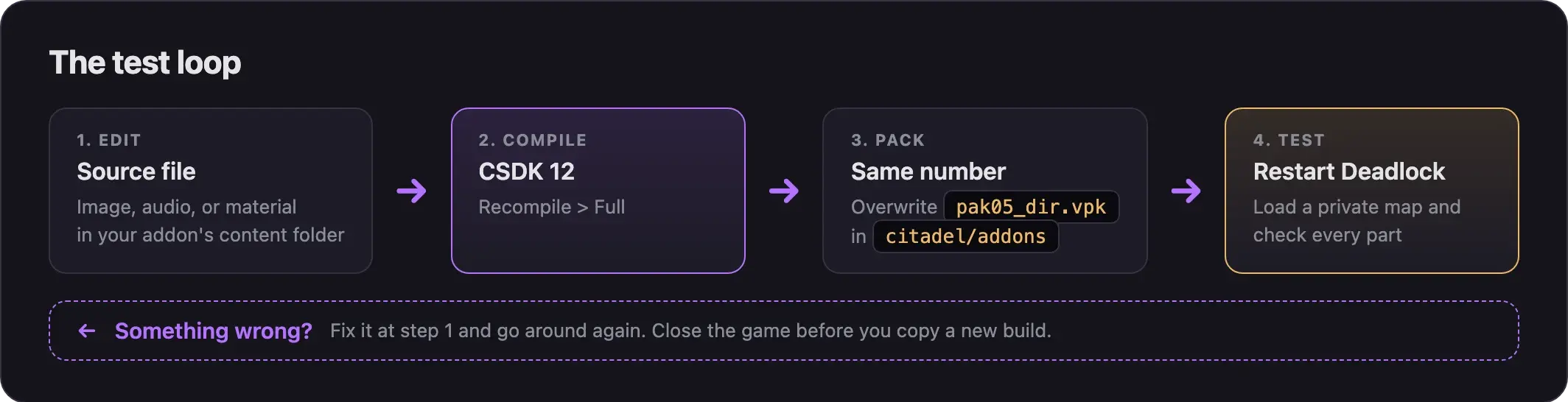
- Close Deadlock. The game reads mods only when it starts.
- Copy your VPK into
game/citadel/addons/, over the old test build. - Start Deadlock.
Restart the game after every new build. No source confirms that it reloads a changed VPK while running.
- Turn off your other mods while you test. A mod with a lower number can hide yours.
- If you test through Deadlock Mod Manager, zip your VPK first. Put the
.vpkat the top level of the zip, not in a folder.
Turn on the console
- Open Deadlock's settings.
- Turn on Dev command console.
- Press F7 to open the console.
Load a private map
These maps run on your own PC, not on Valve's servers.
- Press F7 to open the console.
- Type one of these commands and press Enter:
map dl_hideout: the hideout.map new_player_basics: the new player basics map.map dl_midtown: the full main map.
- Pick your hero.
- To pick another hero, type
changeteam 0. The team and hero choice opens again.
The game also has a sandbox mode. Some creators use it to spawn their hero and check the health bar.
What to check
Check every part of your mod, not only the part you changed.
- Walk around and look at your hero from every side.
- Aim down sights. The camera should sit where it does on the normal hero, not in the middle of the screen.
- Use every ability. Some switch parts of the model on or off.
- Die once and look at the body.
- Check that the health bar floats above the hero, not at the feet.
- Check the hero select and shop screens.
- Look for missing or wrong textures on every part.
- Type
snd_showstart 1in the console. It now prints each sound path as the sound starts. - Make the sound play, for example by using the ability.
- Check that your sound plays and its path shows in the console.
- Compare volume and length with the original sound. Keep them close.
- Check every place your image appears. A hero has six portraits: the hero card, the small icon, the minimap icon, the tall portrait, and the low health and kill streak portraits.
- Check that each image is sharp and not stretched.
- Check that see-through parts stay see-through, like in the original.
- Use the ability with your effect.
- While it plays, type
dumpparticlelistin the console to list the particle files in use. - Check that your color shows on every part. Some effects use several particle files.
- Make sure the effect is as easy to see as the original.
A skin, sound, or effect must not make enemies easier to see or hear. What's allowed and how to stay safe lists what crosses the line.
Useful console commands
| Command | What it does |
|---|---|
map dl_hideout | Loads the hideout on your PC. |
changeteam 0 | Opens the team and hero choice again. |
snd_showstart 1 | Prints each sound path as the sound starts. |
soundinfo | Lists the sounds playing right now. |
play <path> | Plays one sound file, such as play sounds/.... |
dumpparticlelist | Lists the particle effects in use. |
These commands come from community notes written before the "City Never Sleeps" update. Some may have changed.
Read errors in the console
Load a private map with your mod in place, open the console with F7, and read any errors or warnings that name your files.
For example, a model with broken camera attachments fills the console with green text that names the bad attachment. If your mod does not show at all, the cause is almost always the file name, the folder, or a path inside the VPK.
Fixes for common errors are in Errors when making mods and Model and skin problems.
Before you queue again
Deadlock will not start matchmaking while anyone in your party runs tools mode. Close your tools first.
- Close CSDK 12 and every other modding tool.
- Remove any custom map VPKs you tested. Custom maps do not work in Valve matches.
- Check that you changed only the
SearchPathspart ofgameinfo.gi. Edits to other parts can block matchmaking. - Restart Deadlock, so nothing from your test session carries over.
Next steps
Divine is adding Deadlock mods. When they arrive, you'll find them in Explore mods, and you'll publish yours from the Creator Panel.
Share it once it passes your tests.
Pick your next project from the learning path.
Credits
This guide is based on the work of these creators. Check out their original guides.
- Guide: Hosting a Local Listen Server and Replacing Sounds from Deadlock Modding Notes.
- Tool: DeadPacker by Artemon121.
- Video: (Read Desc) Deadlock - General Model Swap Steps by Pugzilla.
- Video: (New Tool) Deadlock - Particle Color Change Tutorial by Pugzilla.
- Guide: From Start to Finish (Fuji's Asset Replacement Guide) by Fuji (FellOffFuji).
- Guide: Neutral's General Guide for Modding Deadlock by Neutraldrift.