
Source 2 Viewer
Use the free Source 2 Viewer to browse Deadlock's game files, preview models and textures, decompile files to edit, and build VPKs.

The free viewer and exporter for Source 2 game files. By the ValveResourceFormat team.
Source 2 Viewer opens Deadlock's game files. Use it to find the file you want to change, preview it, and export a copy you can edit. It also packs mods into VPKs. To install it with the rest of your tools, follow Set up your creator tools.
What you need
Windows PC
for the appDeadlock on SteamThe app runs on Windows. Its site lists Windows 11 and OpenGL 4.6. The command-line version also runs on macOS and Linux.
Download the dev build
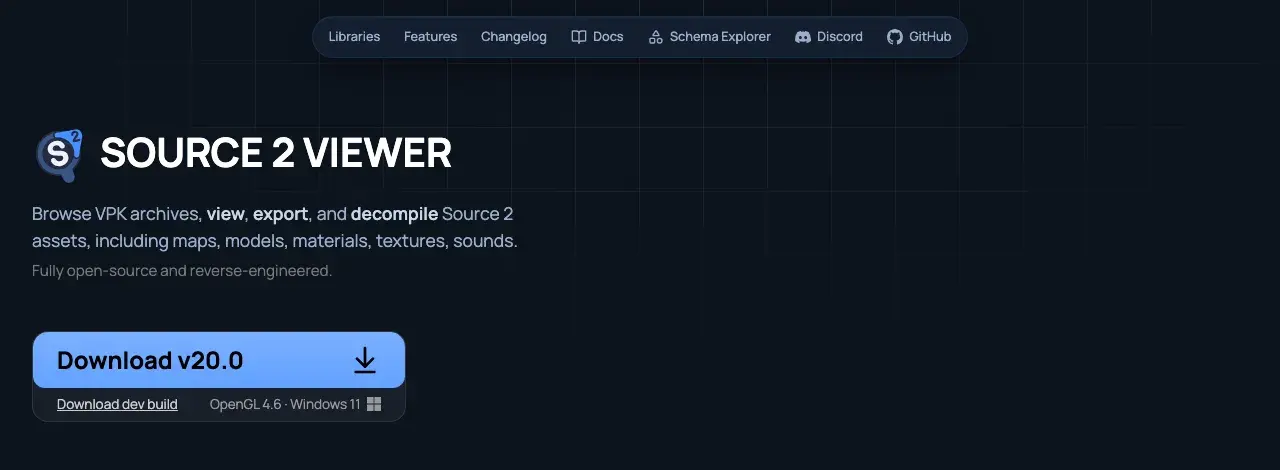
- Open s2v.app with the Download button at the top of this page.
- Click Download dev build, under the big download button.
- Put the file in its own folder. There is no installer.
Every current Deadlock guide uses the dev build, because Deadlock fixes land there first. If you prefer a normal release, use Download v20.0 or newer. Older releases have bugs with hero models. See Known issues by version.
Open the game files
- Open the Explorer tab. Source 2 Viewer finds your Steam games on its own. Expand Deadlock.
- Or click File, then Open and pick
Deadlock/game/citadel/pak01_dir.vpk. - Open only the
_dirfile. Source 2 Viewer loads the numberedpak01_000.vpkparts with it.
Hero files sit in models/heroes_wip/ and models/heroes_staging/, under codenames. Source 2 Viewer's own docs say models/heroes/, but that folder now holds only camera files. Hero names and file paths lists every codename.
Search and preview
| Name | Description |
|---|---|
| Ctrl+F | Searches by file name, full path, or regex. |
| Double-click a model (.vmdl_c) | Opens it in the viewer. Alt + drag orbits, Shift + drag pans, and the mouse wheel zooms. |
| Double-click a texture (.vtex_c) | Shows its size, format, and color channels. Note the size before you replace it. |
| Double-click a sound | Plays it. |
| Right-click > Copy name | Copies the file's path. Paste it instead of typing it. |
If you open a file you copied out of the game folder, its links to other files break. Add Deadlock's gameinfo.gi under Settings, then Game content search paths to fix that.
The References and Data tabs
When a model is open, two tabs show what it uses:
| Name | Description |
|---|---|
| References | Lists the materials the model loads. Materials are not always in the hero's folder, so check here instead of guessing. |
| Data | Shows the skeleton, animation graph, camera, and game data values. The model guides read values from here. |
Export as is, or decompile
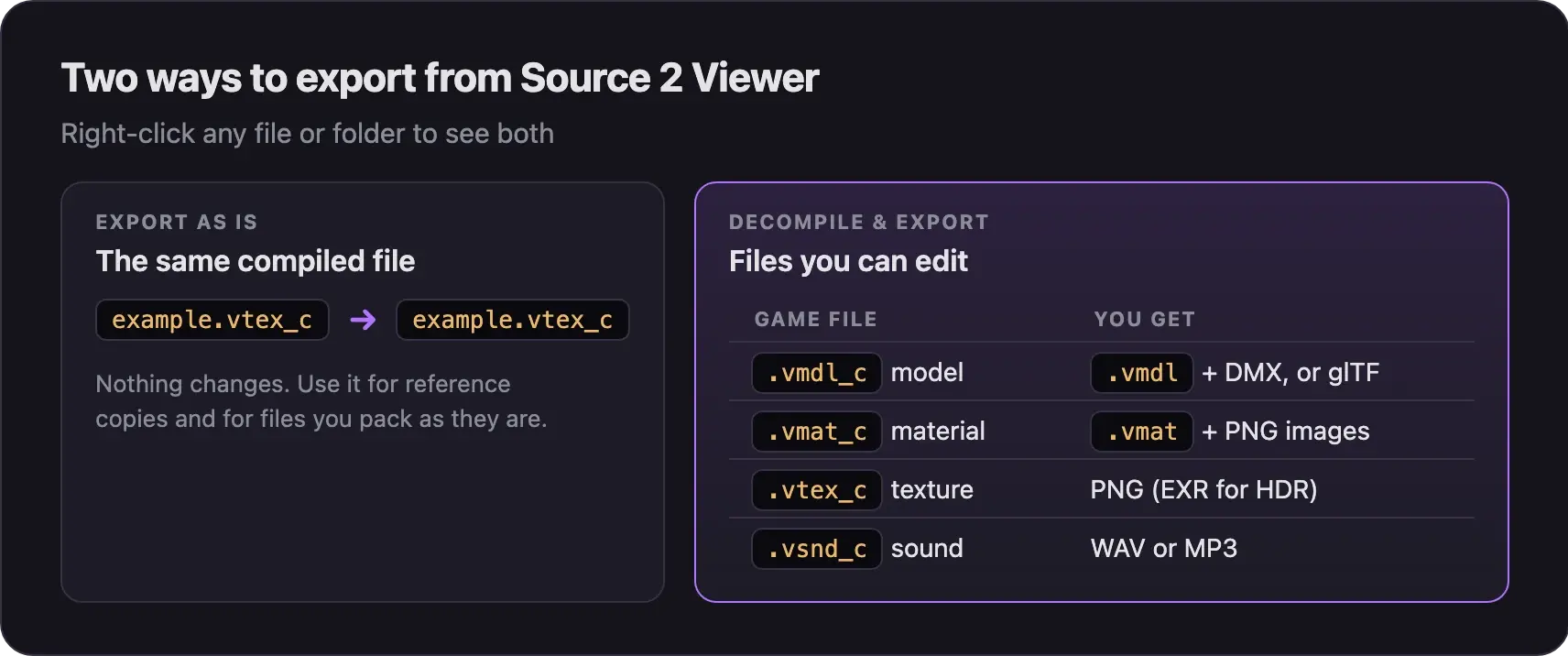
Right-click any file or folder to export it. There are two modes.
| You export | Save it to |
|---|---|
| One file | The matching folder of your addon, inside content/citadel_addons/<addon>/ |
| A folder or several files | The addon's root folder. Source 2 Viewer rebuilds the subfolders for you. |
| Reference copies | A work folder outside content/. Keep glTF files and test exports there. |
Export by file type
- For a model swap, export the hero model twice. The
.vmdlexport is the ModelDoc project, with DMX meshes, attachments, and hitboxes. The glTF export is the easiest file to open in Blender. - Pick
.gltf, not.glb. A.glbfile breaks above 2 GB. - glTF holds only the most detailed version of the model (LOD0). It has no hitboxes, and cloth bones come out stiff.
- Hero animations sit in a
clipsfolder next to the model. Decompile that folder to get.vnmclipand DMX files.
The Blender import guide in Next steps has the full steps.
- Textures export as PNG. HDR textures export as EXR. Only the largest size is saved.
- An export comes from the compressed game file, not the artist's original. Paint at full size instead of saving the same export over and over.
- Masks and normal maps look wrong in plain color. Check each channel in the viewer.
- Sounds export as WAV or MP3.
- Right-click a folder to export everything in it at once.
Create a VPK
Source 2 Viewer can pack a folder into a VPK with File, then Create VPK from folder. Its own docs call the packing screen basic, but most Deadlock guides use it. The packing guide in Next steps has the full steps.
Some older releases had bugs when building VPKs. Use the dev build for packing too.
Command line (optional)
Source2Viewer-CLI runs on Windows, macOS, and Linux. Use it for batch exports and scripts. These examples follow the official docs, with Deadlock paths filled in:
# List every file in a hero folder
Source2Viewer-CLI -i "<Deadlock>/game/citadel/pak01_dir.vpk" --vpk_list -f "models/heroes_wip/<codename>/"

# Export every hero texture as PNG
Source2Viewer-CLI -i "<Deadlock>/game/citadel/pak01_dir.vpk" -o "exported/" -d --vpk_extensions "vtex_c" --vpk_filepath "models/heroes_wip/"

# Pack a folder into a VPK
Source2Viewer-CLI -i "mymod" --vpk_create "pak05_dir.vpk"| Name | Description |
|---|---|
| -d | Decompiles the files. |
| -o | Sets the output folder. |
| --game <path to gameinfo.gi> | Add it when the file you open sits outside the game folder. |
| --vpk_list | Lists the files in the VPK. |
| --vpk_create | Packs a folder into a VPK. |
Known issues by version
Need help with a bug? Source 2 Viewer has a Discord server, linked from s2v.app.
Next steps
Turn your compiled files into one mod file the game loads.
Open an exported hero or prop in Blender at the right size and facing.
Compile the files you exported and edited.
Credits
This guide is based on the work of these creators. Check out their original guides.
- Tool: Source 2 Viewer by the ValveResourceFormat team.
- Docs: Getting Started and Format Support and Export Fidelity by the ValveResourceFormat team.
- Release notes: Source 2 Viewer releases by the ValveResourceFormat team.
- Guide: Source 2 Viewer from Deadlock Modding Notes.
- Guide: Neutral's General Guide for Modding Deadlock by Neutraldrift.
- Guide: From Start to Finish (Fuji's Asset Replacement Guide) by Fuji (FellOffFuji).