
Change item names and other text
Rename items, heroes, and abilities, or fix subtitles, by editing Deadlock's localization text files. A text editor is all you need to start.
Every word the game shows comes from plain text files. Edit one to rename an item or a hero, or to fix a subtitle. You only need a text editor to try it. To share your change, pack the file into a VPK with Source 2 Viewer.
What you need


Any text editor works, even Notepad. Notepad++ can also search many files at once.
Where the text lives
All text sits in Deadlock/game/citadel/resource/localization/. Each folder there holds one file per language, named like citadel_gc_mod_names_english.txt.
| Folder | What it holds |
|---|---|
citadel_gc_mod_names | Item names and their shop search words |
citadel_gc_hero_names | Hero names |
citadel_generated_vo | Voice line text |
citadel_main | General game text, such as matchmaking messages |
Other folders: citadel_attributes, citadel_gc, citadel_heroes, citadel_mods, citadel_patch_notes, and citadel_vdata. Search them when you cannot find a text in the folders above.
Each line has a key on the left and the text on the right:
"upgrade_close_range" "Close Quarters"Never change the key. Change only the text in the second pair of quotes.
Two ways to ship a change
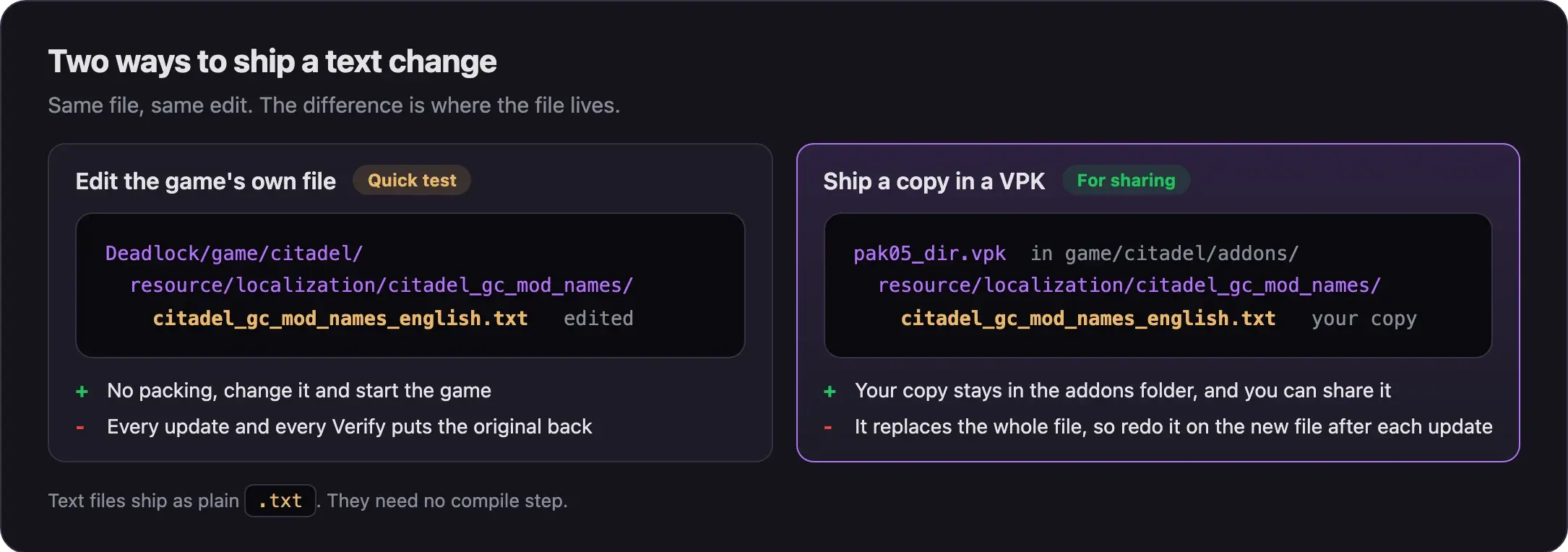
Edit the game's own file to try a change. Ship a copy in a VPK when you want it to last or to share it.
Rename an item
This example renames Close Quarters.
Find the text you want
- Open Notepad++.
- Choose Search, then Find in Files.
- Set Directory to the
localizationfolder. - Set Filters to
*_english.txt, or the ending for your game language. - Type the text as you see it in game and click Find All.
The results show the file and the key that hold your text.
Edit the game's file
- In Steam, right-click Deadlock and choose Manage, then Browse local files.
- Open
game/citadel/resource/localization/citadel_gc_mod_names/. - Copy
citadel_gc_mod_names_english.txtto another folder as a backup. - Open the file in your text editor.
- Search for the item's key:
"upgrade_close_range". - Change only the text in the second pair of quotes.
- Find the matching
"upgrade_close_range_search"key. Change its text too. This is what you type to find the item in the shop. - Save the file and start the game.
- Open the shop and look for your new name. Search for it too.
Each item has these two keys: upgrade_<name> for the name, and upgrade_<name>_search for the shop search words. If you play in another language, edit the file for that language instead.
Make it last: ship it in a VPK
Game updates and Steam's Verify integrity of game files put the original file back. Your edit is gone. A copy in a VPK stays in your addons folder.
- Make a staging folder, such as
itemnames. - Inside it, rebuild the path:
resource/localization/citadel_gc_mod_names/. - Copy your edited
citadel_gc_mod_names_english.txtinto it. Text files ship as they are, with no compile step. - Put the original file back in the game folder, from your backup. Now you test the VPK, not the loose file.
- Pack the folder with Pack your mod into a VPK.
- Load it and check the shop. Follow Test your mod in game.
Your staging folder looks like this:
One popular mod ships these text files inside its VPK, so this should work. Nobody has confirmed it on build 6779 yet.
Your VPK replaces the whole file. After an update adds items or changes text, your old copy hides those changes. After each update, copy the new file from the game and redo your edits.
Rename a hero
Hero names are in citadel_gc_hero_names/citadel_gc_hero_names_english.txt. Edit them the same way as items.
Hero cards show the hero's name as art, not text. That art is a compiled image in panorama/images/heroes/hero_names/, with a normal and a _localized version per hero. Your text change does not touch it. Changing the art needs CSDK 12, and this guide does not cover it.
Subtitles and captions
Voice line text is in two places:
game/citadel/resource/localization/citadel_generated_vo/game/citadel/resource/closecaption_english.txt
Search both for the line you want to fix. Edit it where you find it. Then test it in game. If you replaced a voice line, update its subtitle to match. Replace voice lines covers the sound side.
Translations
To translate the game, edit the files for one language, line by line. Keep every key and every quote. Change only the text.
A full translation is a big job. Keep your work in a separate folder, so a game update or a Verify cannot overwrite it. Ship it as a VPK, as shown above.
Keep it fair
Text mods change words, not what you know. Do not use them to add information the game hides, such as timers or enemy stats. Read What's allowed and how to stay safe.
Common problems
Next steps
Give the items you renamed new art to match.
Move or restyle one part of the HUD with Panorama CSS.
Credits
This guide is based on the work of these creators. Check out their original guides.
- Guide: Changing item names by MilesRubi.
- Mod: Unstoppable - Stop mods breaking by mack.wtf, which ships these text files inside its VPK.
- Data: GameTracking-Deadlock by SteamTracking, for the localization and caption file paths.