
Replace a sound
Swap one ability sound or music track: find it in Source 2 Viewer, compile your audio with CSDK 12, and pack it as a mod.
Replace one ability sound or music track with your own audio: find it in Source 2 Viewer, compile your file with CSDK 12, and pack it as a mod. New to mods? Read How Deadlock mods work and Set up your creator tools first.
What you need

Source 2 Viewer finds the original sound and exports it. CSDK 12 compiles your audio into a sound the game reads. Use sounds you made or have permission to share.
What you can change
Other players hear the normal game. You hear your sound on every copy of that hero, enemies included.
- Change your hero's ability sounds, music, or menu sounds.
- Keep the new sound about as loud and as long as the original.
- For your first mod, pick a sound that plays once. Sounds that loop while an ability is active need extra steps.
Do not make enemy cues louder, longer, or clearer. This includes heavy melee, parry, ultimates, and footsteps. Players see these mods as unfair. Read What's allowed and how to stay safe.
Make the mod
Pick a route. The full workflow gives you the most control. The quick option builds the mod in your browser, with no CSDK 12.
This video by Pugzilla follows the same steps as this guide.
The video was made before the September 2026 update. The CSDK 12 launcher looks different now, but the steps work the same way. The looping part at 7:08 uses an older method.
Find the sound
- Open Source 2 Viewer.
- Open
Deadlock/game/citadel/pak01_dir.vpk. - Go to
sounds/abilities/and open your hero's folder. Folders use codenames, not hero names. Look yours up in Hero names and file paths. Music is insounds/music/. - Double-click sounds to play them until you find the one you want.
- Write down the full path and file name exactly, letter by letter.
- Right-click the sound and choose Decompile & export. Save it outside your addon, to compare length and volume later.
You can also find a sound in game. Load a private map, open the console, and type snd_showstart 1. Then use the ability. The console prints the path of each sound as it starts.
Start from the Billy Audio Template
CSDK 12 comes with a ready-made sound addon. Copy it instead of building folders by hand.
- Open the CSDK 12 launcher. Keep Steam running.
- Right-click Billy Audio Template and choose Duplicate Addon.
- Name the copy in lowercase with no spaces, for example
mysound. The launcher hides names with capitals, spaces, or special characters. - Right-click your new addon and choose Explore Content Folder. You see a
soundsfolder and asoundeventsfolder. - Delete the Billy sound files inside
sounds. If you keep them, your mod also changes one of Billy's sounds.
Leave the soundevents folder alone and do not pack it.
Add your audio
- Inside the addon's
soundsfolder, rebuild the original folder path, such asabilities/<codename>/. - Open the original sound and your new audio in Audacity.
- Trim your audio to about the same length as the original.
- Match the volume. If yours is too quiet, use Effect, then Volume and Compression, then Amplify.
- Export it as
.wavor.mp3. - Name it exactly like the original, in lowercase. Only the ending changes:
example_sound.vsnd_cin the game becomesexample_sound.wavin your addon. - Save it in the folder you made in step 1.
Your addon's content folder now looks like this:
Compile
- In the CSDK 12 launcher, select your addon and click Launch Tools. The Asset Browser opens.
- Find your new sound in the Asset Browser.
- Right-click it and choose Recompile, then Full.
- Right-click your addon in the launcher and choose Explore Game Folder.
- Open the same path, such as
sounds/abilities/<codename>/. Your compiled.vsnd_cfile is there.
Pack and test
Take the compiled file from the game folder. The content folder only holds your source audio.
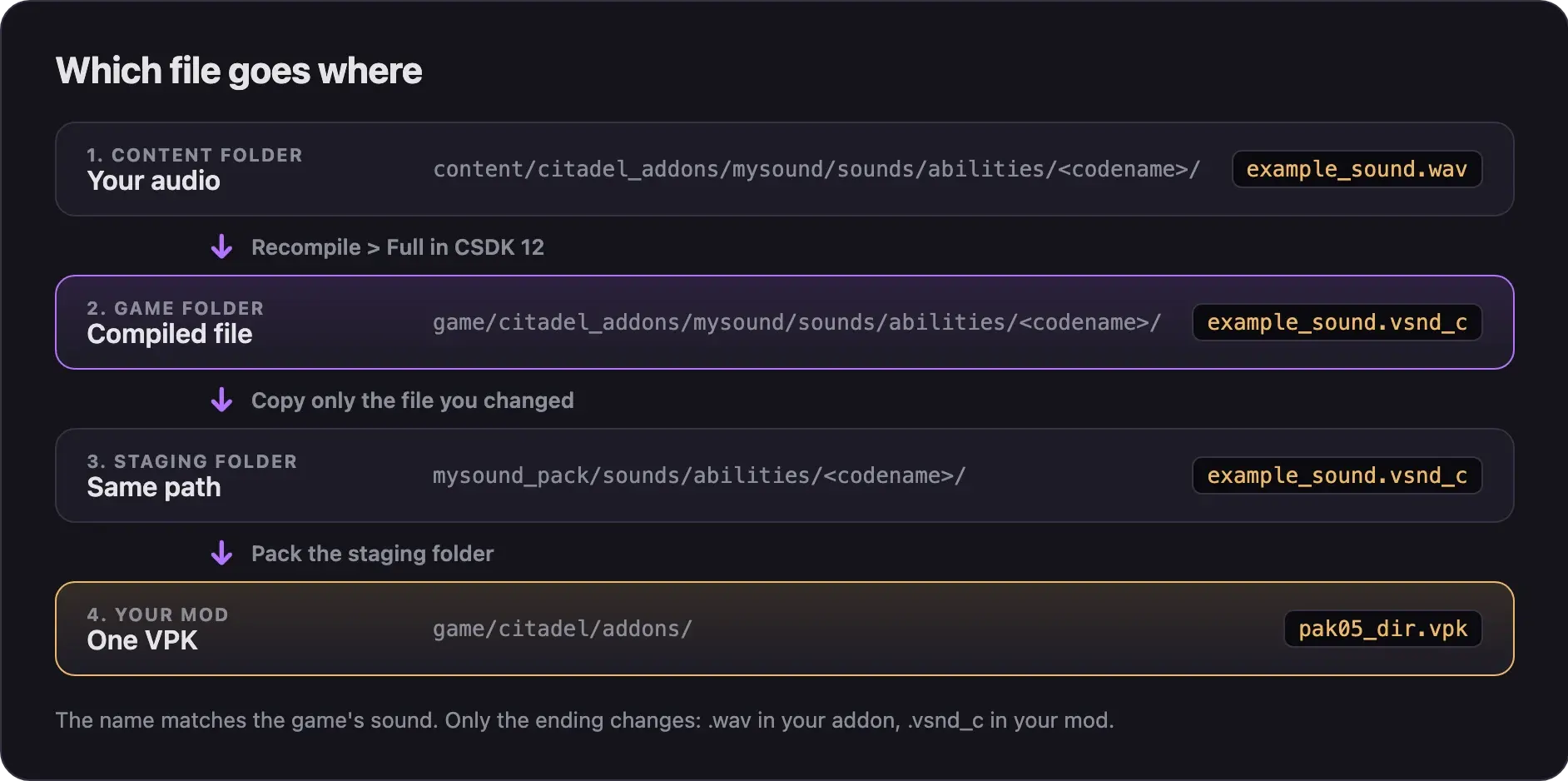
- Make a staging folder, such as
mysound_pack, with the same path inside:sounds/abilities/<codename>/. - Copy only your compiled
.vsnd_cfile into it. - Pack the folder into a VPK with Pack your mod into a VPK.
- Load the mod and check the sound with Test your mod in game.
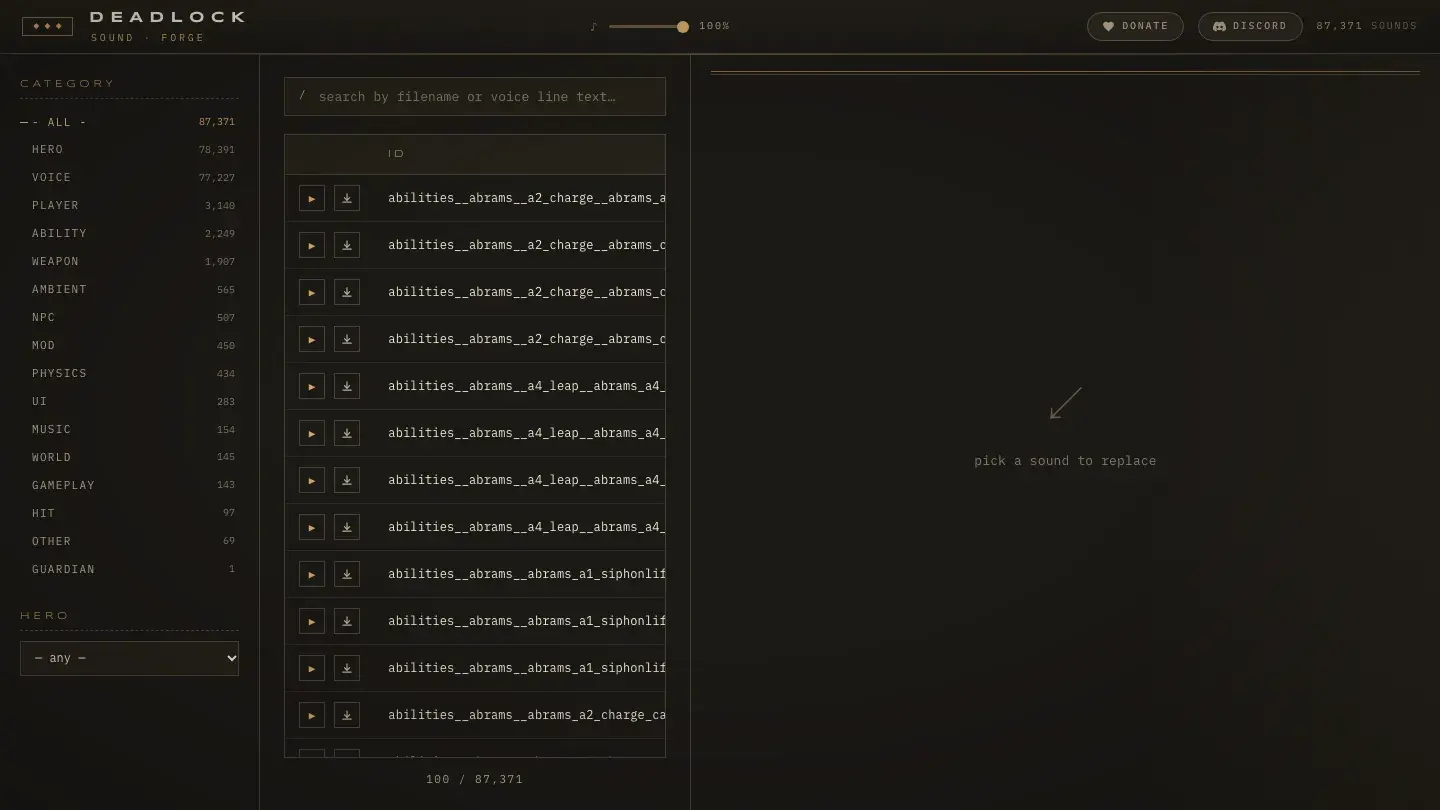
Sound Forge on Deadlock Forge builds a sound mod in your browser. Other browser tools are in Make mods without installing tools.
- Open Sound Forge.
- Filter the list by category or hero, or search by file name or voice line text. Then click the sound you want to replace.
- Drop in your audio file. It accepts mp3, wav, ogg, and flac.
- Trim the sound and set its volume. Keep it close to the original.
- Click Forge VPK and download the file.
- Rename the file to a name like
pak05_dir.vpk. The naming rules are in Pack your mod into a VPK. - Install it with Deadlock Mod Manager or by hand.
Common problems
More fixes are in Errors when making mods.
Next steps
Change one line or a hero's whole voice.
Make one ability pick a different sound each time.
Make a looping ability sound play smoothly, or shrink a big sound mod.
Credits
This guide is based on the work of these creators. Check out their original guides.
- Video: (Read Desc) Deadlock - Sound Replacement Tutorial by Pugzilla.
- Video: How to Make Custom Sound Mods in Deadlock | Random Audio & Sound Switches by Adamtheboss9.
- Guide: Replacing Sounds from Deadlock Modding Notes.
- Tool: Deadlock Forge by Sirsyorrz.
- Tool: Source 2 Viewer by the ValveResourceFormat team.