
Play random sounds with soundevents
Edit a hero's soundevents file so one ability plays a random pick from several of your sounds, and fit the volume and loop length to your audio.
Make one ability play a different sound each time you use it. You edit the hero's soundevents file so one event lists several sound files. Make your first sound mod with Replace a sound before you start. This page builds on it.
What you need

Source 2 Viewer
CSDK 12
Notepad++
or any editor for big filesTwo or more sounds of your ownThe hero's codenameOne finished sound modSource 2 Viewer opens the hero's soundevents file and shows the ability's sound folder. CSDK 12 compiles your sounds and your edited soundevents file. Make each sound about as long and as loud as the original. Your first sound mod teaches you the Billy Audio Template steps.
What a soundevent is
The game never plays a sound file directly. It fires a named soundevent, such as Punkgoat.Blasted.Lp for Billy's Blasted. The hero's soundevents file says which sound file that event plays.
Give the event a list of files, and the game picks one at random each time.
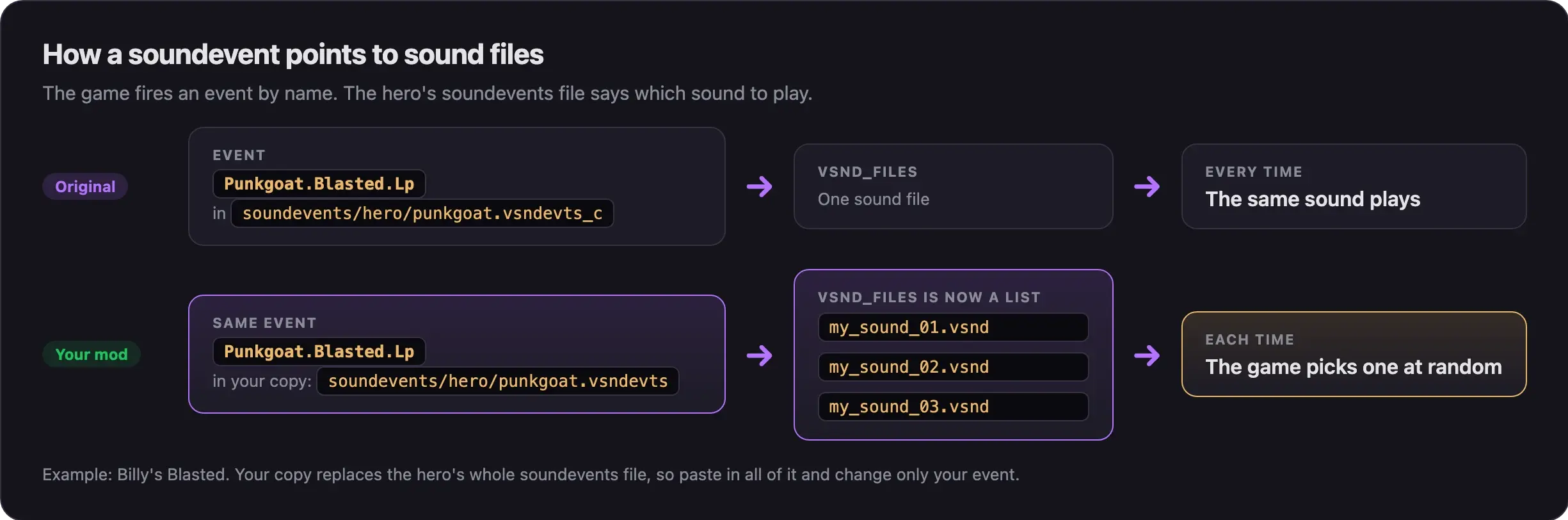
Replace a sound swaps a file and leaves the event alone. This page changes the event itself. Use it when you want several sounds for one event, or need to fit the volume or loop length.
Keep it fair
An event plays for every player using that hero, enemies included. You hear your sounds on their abilities too.
Keep every sound in your list as loud and as long as the original. Never use an event edit to make a cue louder, longer, or easier to pick out. Read What's allowed and how to stay safe.
Watch the walkthrough
This video by Adamtheboss9 shows the whole method on Mo & Krill's Burrow. It starts at the part this page covers.
The video is from August 2026, before the "City Never Sleeps" update. It puts CSDK 12 inside the Deadlock folder. We recommend a short path outside it, as in Set up your creator tools. It also uses full songs. Use audio you made or are allowed to share.
Make the mod
Set up the addon
- In the CSDK 12 launcher, right-click Billy Audio Template and choose Duplicate Addon.
- Name the copy in lowercase with no spaces, such as
randomsounds. - Right-click it and choose Explore Content Folder. You see a
soundsfolder and asoundeventsfolder. - Delete the Billy sound files inside
sounds. - In Source 2 Viewer, open
game/citadel/pak01_dir.vpkand go tosounds/abilities/<codename>/. The codename is in the Sounds column of Hero names and file paths. - Find the folder of the ability you want. Copy its folder names exactly.
- Rebuild that path inside your addon's
soundsfolder. - Put your sound files there. Use lowercase names with no spaces, such as
my_sound_01.wav.
Your files can have new names here. The event will point to them by name.
Copy the hero's soundevents file
- In Source 2 Viewer, open
soundevents/hero/<codename>.vsndevts_c. For Billy, that ispunkgoat.vsndevts_c. - Select all of its text and copy it.
- In your addon, open
soundevents/hero/. Rename the template's file to<codename>.vsndevts. Leave off the_c, which marks compiled files. - Open the file in Notepad++. Delete everything in it.
- Paste the text you copied. Save.
You can also right-click the .vsndevts_c in Source 2 Viewer and choose Decompile & export into that folder.
Always paste the whole file. Your copy replaces the game's whole soundevents file for that hero. If an event is missing from your copy, that sound may stop playing.
Use a fresh copy from the current game. Never reuse an old copy from another mod.
Turn the sound into a list
- Press Ctrl+F and search for the event name, or for the original sound's file name.
- Find the event's
vsnd_filesentry. It holds the path of one sound. - Replace that one path with a list in square brackets: one path per line, with a comma after each path except the last.
- Write your paths in the same style as the original. If the original path ends in
.vsnd, yours do too. - Save.
The change looks like this. Your paths and folder names come from your hero.
Before:
vsnd_files = "sounds/abilities/<codename>/<ability>/original_sound.vsnd"After:
vsnd_files =
[
    "sounds/abilities/<codename>/<ability>/my_sound_01.vsnd",
    "sounds/abilities/<codename>/<ability>/my_sound_02.vsnd",
    "sounds/abilities/<codename>/<ability>/my_sound_03.vsnd"
]
This method comes from one creator's video, made before the "City Never Sleeps" update. Check the result in game.
Fit the volume and loop length
Fix loudness in Audacity first. Then check the event's own values.
| Value | What to do |
|---|---|
| Volume | If the event has a volume value, you may lower it so your sounds match the original. Never raise it above the original. |
| Loop length | Some ability sounds loop while the ability lasts. If the event has a set duration and your clip is longer, the loop restarts before your clip ends. Raise that duration to fit your longest clip. |
| Pitch | If your sounds play higher than expected, look for a pitch value on the event. |
A longer loop duration only sets when the loop restarts. Test that the sound still stops when the ability ends.
Compile
- In the CSDK 12 launcher, select your addon and click Launch Tools.
- In the Asset Browser, select your new sound files and your
.vsndevtsfile. Select only the files you added or changed. - Right-click and choose Recompile, then Full.
- Right-click your addon in the launcher and choose Explore Game Folder.
- Check that you have compiled
.vsnd_cfiles undersounds/and a compiled<codename>.vsndevts_cundersoundevents/hero/.
Pack and test
- Make a new staging folder, such as
randomsounds_pack. - Copy the compiled
soundsandsoundeventsfolders from the addon's game folder into it. - Delete any Billy files left from the template, unless Billy is your hero.
- Pack it with Pack your mod into a VPK.
- Load it and use the ability several times. Follow Test your mod in game.
Your staging folder looks like this:
Why two sound mods for one hero may clash
Your mod ships the hero's whole soundevents file. If another mod ships the same file, only one of them wins: the one with the lower pak number. The other mod's event edits stop working.
Mods that only swap sound files can still work next to yours. They stop working on the events you changed, because those events now point to your files.
Updates cause the same problem. Valve can add or change events in an update. Your old copy then hides those changes. After each update, copy the new file and redo your edit.
Common problems
Next steps
Set loop points for looping ability sounds, and shrink a big sound mod.
Change one line or a hero's whole voice.
Credits
This guide is based on the work of these creators. Check out their original guides.
- Video: How to Make Custom Sound Mods in Deadlock | Random Audio & Sound Switches by Adamtheboss9.
- Guide: Replacing Sounds from Deadlock Modding Notes.
- Docs: Destinations/Adding Sound/Soundevents and Half-Life: Alyx Workshop Tools/Addon Sounds from the Valve Developer Community.
- Tool: Source 2 Viewer by the ValveResourceFormat team.