
Loop and compress sounds
Set loop points for looping ability sounds and shrink large sound mods with an encoding.txt file in your CSDK 12 addon.
Some ability sounds loop while the ability is active. This page shows how to set loop points with an encoding.txt file, how to make a big sound mod smaller, and what decides how long a loop plays. Make a one-shot sound mod first with Replace a sound.
These steps come from community notes written before the September 2026 update. We have not tested them on build 6779 yet. They may work differently now.
What you need
CSDK 12
Audacity
or any audio editorNotepad++
or any plain text editorA CSDK 12 sound addonYour audio as a .wav fileCSDK 12 compiles your sound with its loop points and compression. Build the sound addon with your sound at the right path, as in Replace a sound.
Which sounds loop
Some sounds play once, like a gunshot. Others repeat for as long as an ability is active, like an ultimate or a channel. Many looping sounds have lp in their name, such as forge_rocket_barrage_air_raid_lp.
Two separate settings control a looping sound:
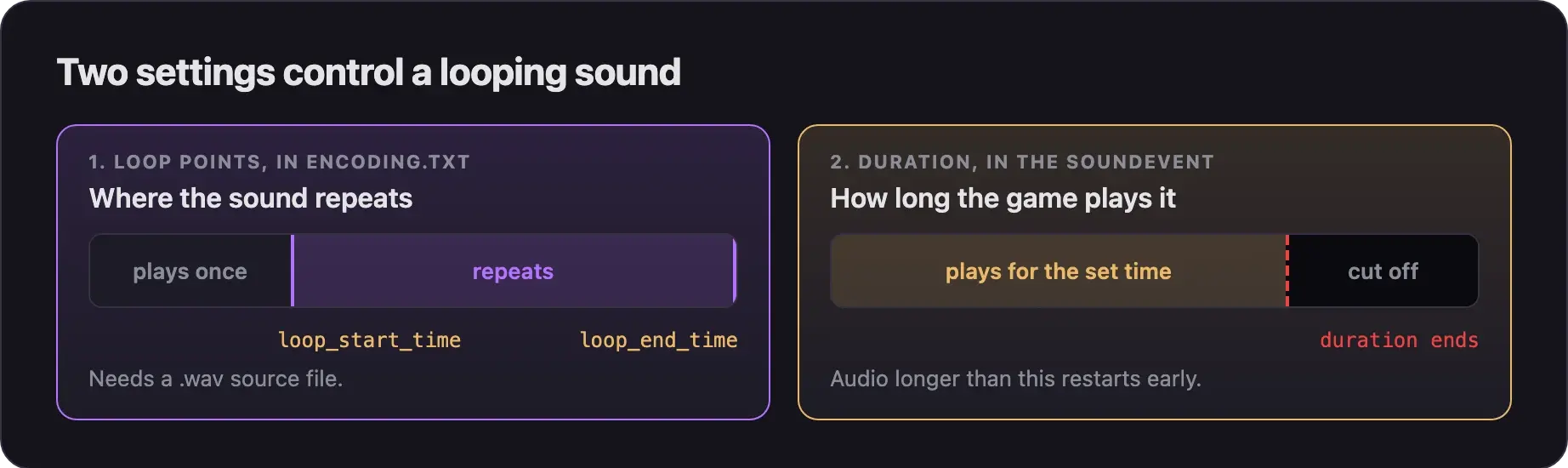
| Setting | What it decides | Where you set it |
|---|---|---|
| Loop points | Which part of your audio repeats | encoding.txt |
| Duration | How long the game plays the sound | The hero's soundevents file, for some loops only |
Keep a looping sound as loud as the original. Never make an enemy ability sound louder, clearer, or longer than the ability itself. Read What's allowed and how to stay safe.
Set loop points
Use WAV for loops
Loop points only work with .wav source files. MP3 is fine for sounds that play once.
- Export your audio as
.wavfrom your audio editor. - Give it the exact name of the original sound. Only the ending changes, for example
example_sound_lp.wav. - Save it at the original path in your addon's content folder.
- Delete any
.mp3copy with the same name from that folder, so only the.wavis left.
Check for lame_enc.dll
Looping also needs a file called lame_enc.dll in CSDK 12's bin files.
- Open your CSDK 12 folder.
- Search it for
lame_enc.dll. - If the search finds nothing, ask in the Deadlock Modding Discord. Never download a
.dllfrom a random website.
Find the loop points
- Open your
.wavin your audio editor. - Select the part that should repeat.
- Write down the start and end of the selection, in seconds.
- Play the jump from the end back to the start. If you hear a click, move the points a little and try again.
You can use sample numbers instead of seconds. They are more exact, but they depend on your file's sample rate.
Write encoding.txt
- Open the folder in your addon's content folder that holds your
.wav. For example:content/citadel_addons/mysound/sounds/abilities/<codename>/. - Turn on file name extensions in File Explorer.
- Create a new text file in that folder named
encoding.txt. Check that it does not end in.txt.txt. - Copy the
encoding.txttemplate from the Replacing Sounds guide into your file. Its first line starts with<!-- kv3. Keep that line exactly as it is. - Under
files, keep one block per looping sound. Delete the other example blocks. - Set
fileNameto your.wavfile name. - Set
loop_start_timeandloop_end_timeto your loop points, in seconds. - Save the file.
Below the first line, your file should look like this:
{
	compress =
	{
		format = "mp3"
		minbitrate = 128
		maxbitrate = 320
		vbr = 1
	}
	files =
	[
		{
			fileName = "example_sound_lp.wav"
			loop =
			{
				loop_start_time = 0.5
				loop_end_time = 6.25
			}
		},
	]
}
To use sample numbers, swap the two loop lines for these:
				loop_start_sample = 22050
				loop_end_sample = 275625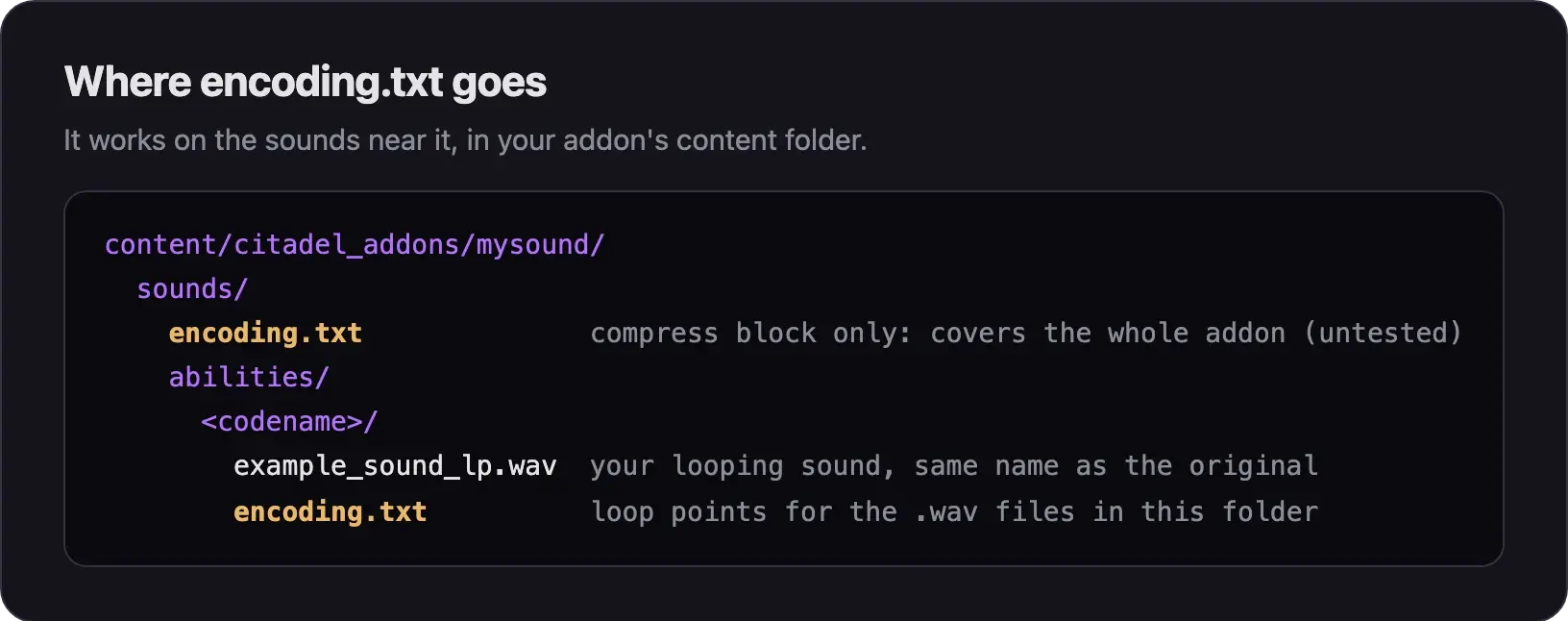
Compile and test
- Launch the CSDK 12 tools for your addon.
- In the Asset Browser, right-click your sound and choose Recompile, then Full.
- Pack the compiled
.vsnd_cand test it. Follow Pack your mod into a VPK and Test your mod in game.
While the CSDK 12 tools are open, saving encoding.txt also recompiles the sounds it lists. This makes it quick to try new loop points.
Compress big sound mods
WAV files are large, so a pack of them makes a huge VPK. The compress block makes CSDK 12 compile the sounds as MP3 instead.
	compress =
	{
		format = "mp3"
		minbitrate = 128
		maxbitrate = 320
		vbr = 1
}| Key | What it does |
|---|---|
format | Sets the compressed format. |
minbitrate, maxbitrate | Set the quality range. Higher means better sound and bigger files. |
vbr = 1 | Lets the bitrate change with the sound. |
In the community guide, one sound shrank from 19.7 MB to 1.97 MB and kept its loop points.
To compress every sound in your addon, put one encoding.txt in the addon's sounds folder, with only the compress block inside the outer braces. The community guide says this should work, but we have not tested it. If a folder also has its own encoding.txt with loop points, add the compress block to that file too.
Make a loop play long enough
Some looping ability sounds have a set duration in the hero's soundevents file. Mo & Krill's burrow loop is one example. If your audio is longer than that duration, the game restarts it before it ends.
- Copy the hero's soundevents file into your addon and edit it. Play random sounds with soundevents shows how.
- Find the event for your looping sound.
- Raise its duration so your audio fits. Raise it only as far as your audio needs.
- Compile the soundevents file and your sound, then pack both.
Common problems
Next steps
Change one line or a hero's whole voice.
Fixes for compile, packing, and sound errors, and changes that never show up.
Credits
This guide is based on the work of these creators. Check out their original guides.
- Guide: Replacing Sounds from Deadlock Modding Notes.
- Video: (Read Desc) Deadlock - Sound Replacement Tutorial by Pugzilla.
- Video: How to Make Custom Sound Mods in Deadlock | Random Audio & Sound Switches by Adamtheboss9.
- Guide: Neutral's General Guide for Modding Deadlock by Neutraldrift.
- Tool: LoopAuditioneer on SourceForge.