
Optimize a Model in Blender
Bring a high-poly model under League's 65,000 vertex limit with Merge by Distance and the Decimate modifier.
League can't load a model with more than about 65,000 vertices. Models you download, especially AI-generated ones, often go way past that. This guide shows two ways to bring the count down in Blender.
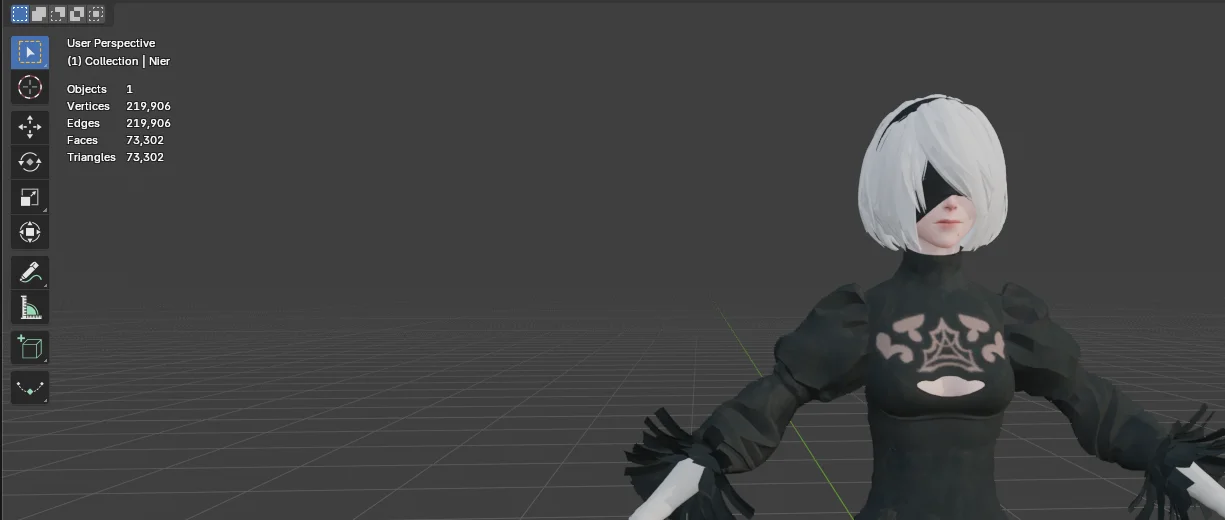
This 2B model has 219,906 vertices, more than three times the limit.
Open the Overlays dropdown at the top right of the viewport and enable Statistics.
Merge by distance
Most imported models have lots of duplicate vertices stacked on top of each other. Merging them costs nothing: the model looks the same and loses a huge chunk of its vertex count.
- Select your model and press
Tabto enter Edit Mode.
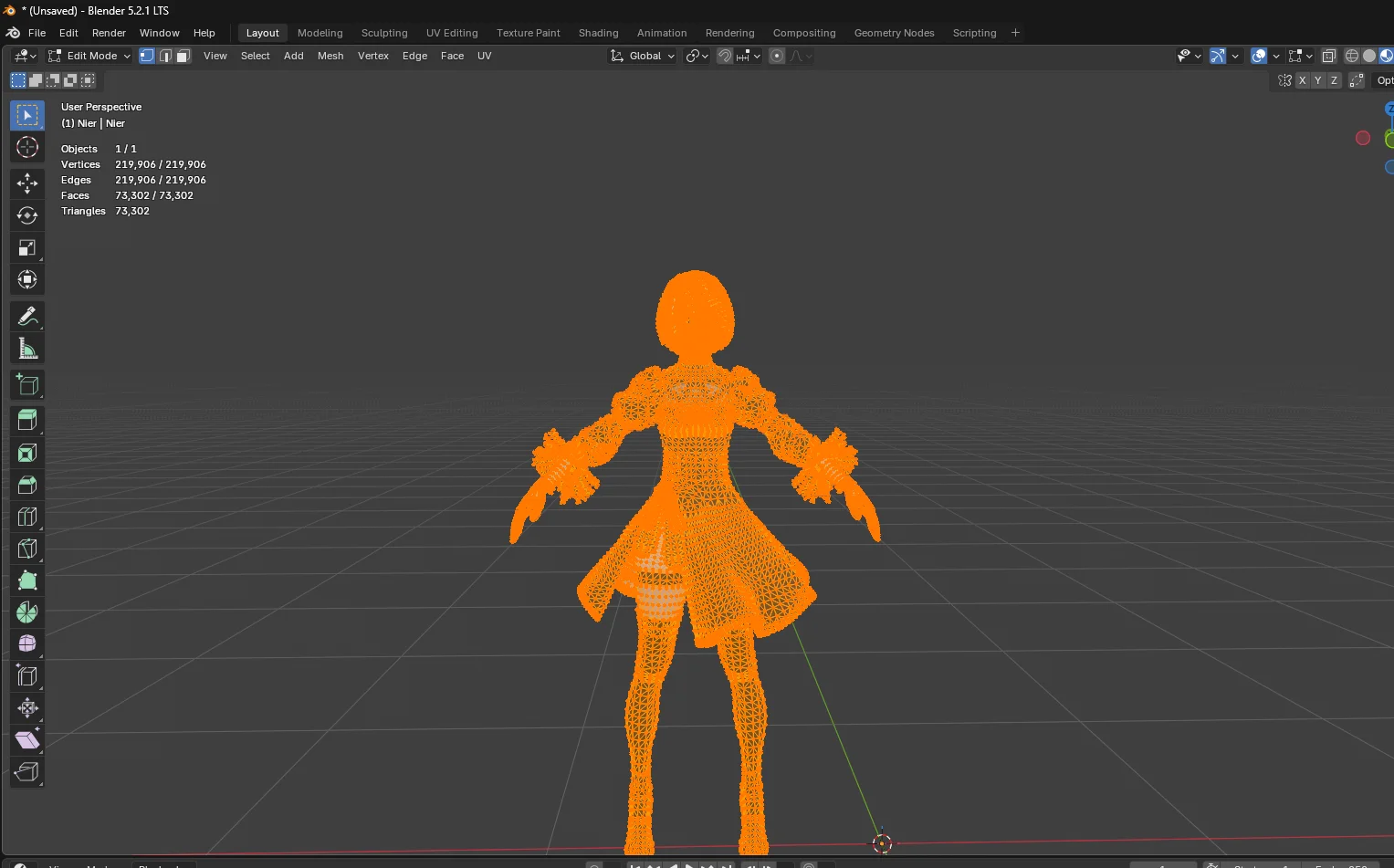
- Press
Ato select every vertex. - Press
Mto open the Merge menu and pick By Distance. Always use By Distance, the other options squash everything you selected into a single point.
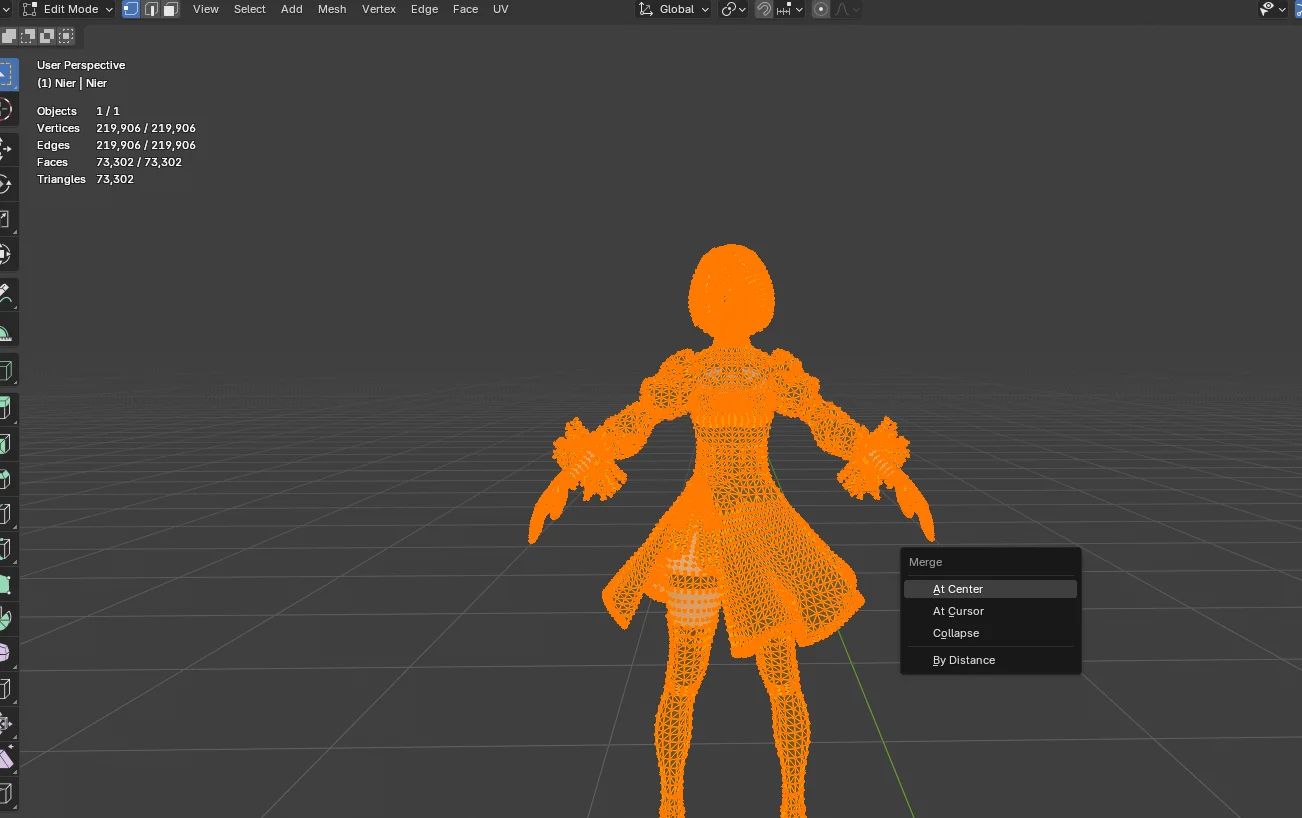
Blender shows how many vertices it removed at the bottom of the window. Here it removed 188,335 vertices and the model dropped to 31,571, well under the limit.
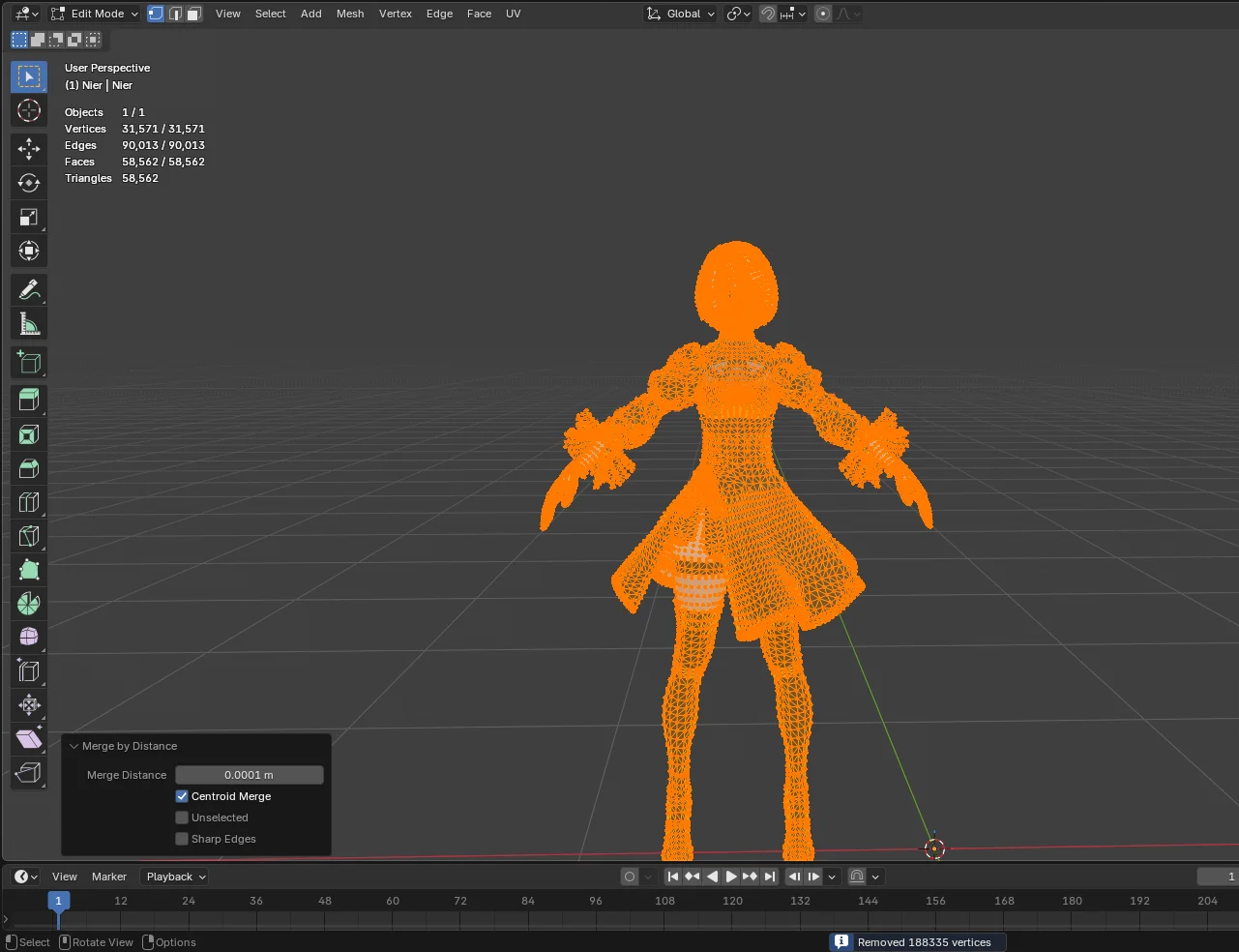
If the count is still too high, raise Merge Distance in the panel at the bottom left a little, for example to 0.001. Don't push it too far or nearby details start fusing together.
Decimate
If merging isn't enough, use the Decimate modifier to simplify the mesh.
- Press
Tabto go back to Object Mode and select your model. - Open the Modifiers tab (the blue wrench icon) in the Properties panel on the right.
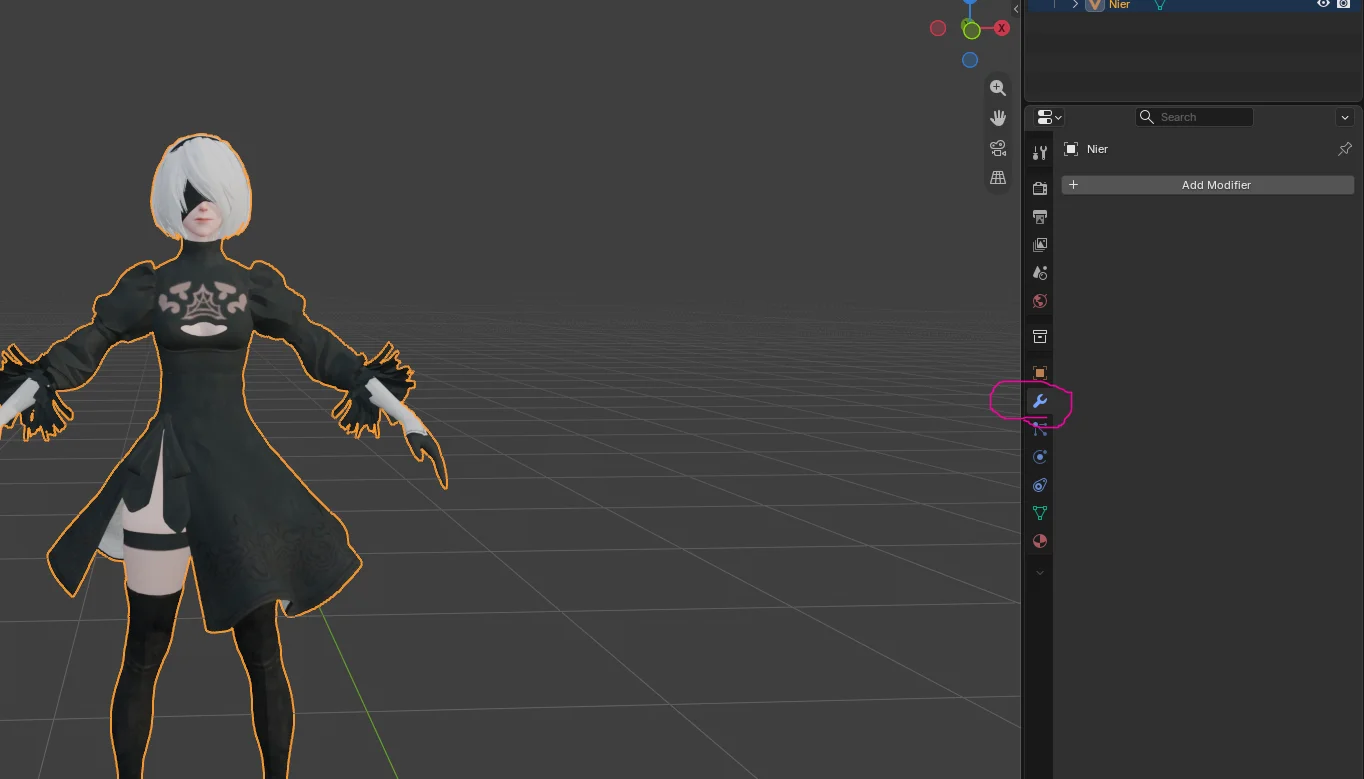
- Click Add Modifier and search for
Decimate. - Switch the mode to Planar.
- Raise Angle Limit little by little and watch the vertex count until it's where you want it. Enable UVs under Delimit so the textures don't get stretched.
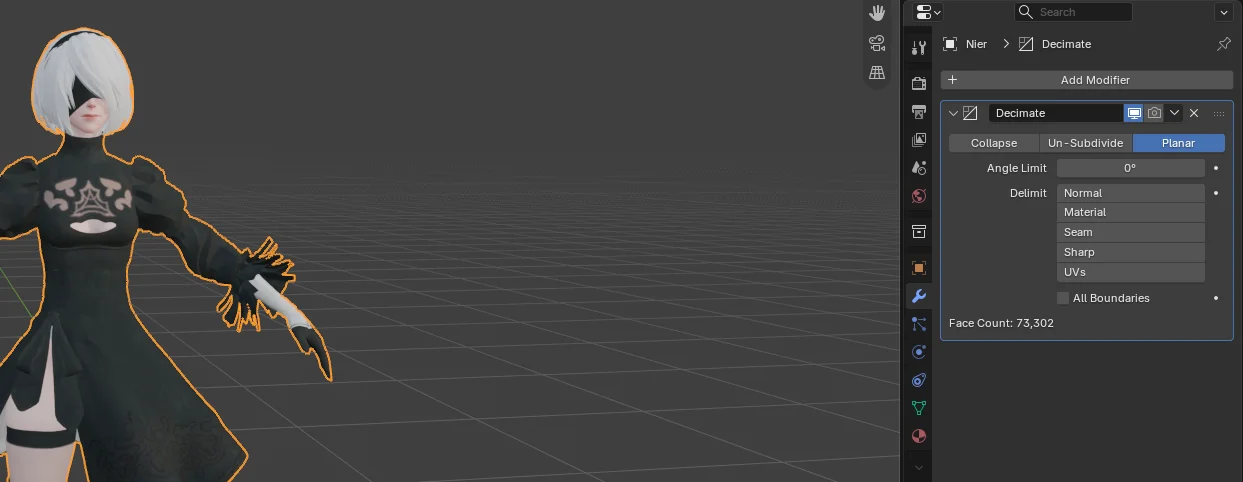
- Open the dropdown arrow on the modifier and click Apply so the change is baked into the mesh before you export.
On very high-poly models, merge by distance first, then decimate what's left. Aim for under 60,000 vertices to leave some room. For more model prep steps, see the 3D Model Swap guide.