
Publish your mod on Divine
Get your Deadlock mod ready for Divine: test it, pack a clean archive, take good screenshots, credit everyone, and submit it for review in the Creator Panel.
Divine is where you share your mod with players. Pack your mod into a VPK and test it in game first. If it uses anyone else's work, read Credits, licenses, and permissions before you start.
Divine is adding Deadlock mods. When they arrive, you'll find them in Explore mods, and you'll publish yours from the Creator Panel. Until then, use this page to get your mod ready.
What you need
Your mod must be a pakNN_dir.vpk file. List everyone whose work is in your mod.
Before you upload
Do these checks before you submit.
- Test the mod in game with no other mods installed.
- Check that it gives no gameplay advantage. Camp timers, visibility skins, and louder ability sounds are out. What's allowed and how to stay safe has the full list.
- Check that you have permission for every model, texture, sound, and image you did not make.
- Leave out AI-made art, models, voices, and music.
- Keep the mod and its screenshots free of 18+ content.
- For skins: check that the hero animates and the camera works. Fix any T-pose, missing attachments, or bad distortion.
- Keep it free. Every mod on Divine is free, so never sell your mod or lock it behind a paywall.
Build your archive
Upload one archive with only what players need: your VPK and a short readme.
- Make a new folder for the upload.
- Copy your
pakNN_dir.vpkinto it. - Add a
readme.txt. Say which pak number to use, which mods it conflicts with, and how to install it by hand. - Pack the folder as a
.zipfile. Do not set a password.
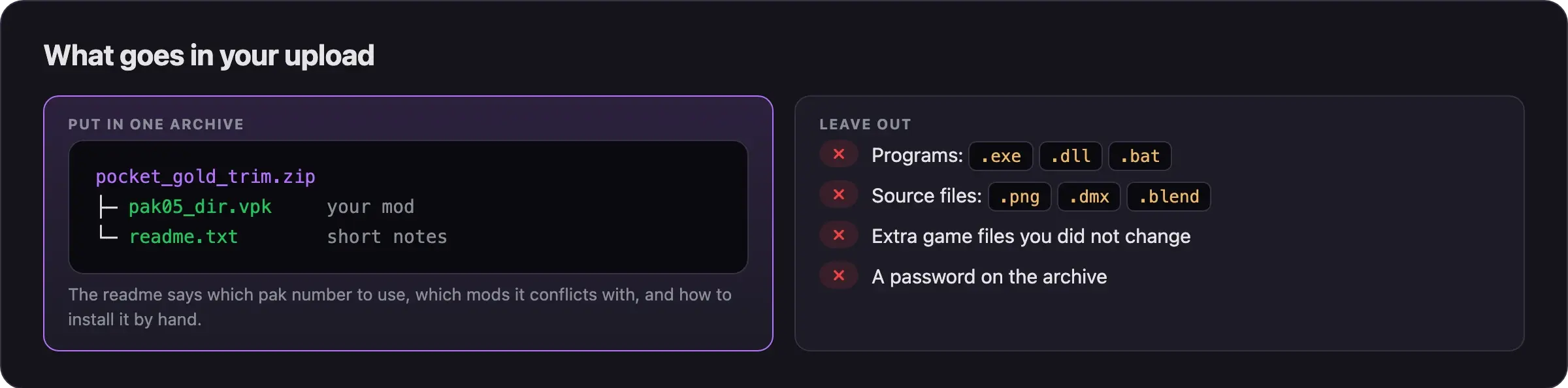
A mod never needs a program. Leave out .exe, .dll, and .bat files.
If your mod has more than one VPK, say so in the readme. Tell players how to install every part by hand.
Take good screenshots
- Take at least two screenshots in game. Show the front and the back of the hero.
- Add a close-up of a detail, or an ability your mod changes.
- Use renders from Blender or other tools only as extras, never instead of in-game shots.
- For a sound mod, record a short clip that plays your sound.
The showcase guide in Next steps explains how to take clean shots.
Submit it on Divine
Log in
- Open divineskins.gg.
- Click Log in.
- No account yet? Click Create account instead.
Open the Creator Panel
- Open the Creator Panel. This is where you manage your mods.
- Start a new mod. The new mod form opens.
Fill in the new mod form
- Write a title that says what the mod is, like "Gold trim for Pocket's briefcase". Skip titles like "My mod".
- Write a description. Say what the mod changes, which pak number to use, and what it conflicts with.
- Add your screenshots.
- Upload your archive.
- Credit yourself, every co-author, and every creator whose work is in your mod.
The form saves your mod as a Draft. You can come back to it later.
Submit for review
- Check every field one more time.
- Click Submit for review. Verified creators see Upload mod instead.
Your mod moves to In review.
Wait for the review
Moderators review every mod before it goes live. Check its state in the Creator Panel.
| Name | Description |
|---|---|
| Draft | You saved the form. Moderators have not seen it yet. |
| In review | Moderators are checking your mod. |
| Changes requested | Moderators want you to fix something. Fix it and submit again. |
| Published | Your mod is live on the catalog, in Explore mods. |
Manage your mods on Divine. Your Deadlock mods go here once Divine adds Deadlock.
Common problems
Still have questions? Hit us up on Discord. We're always around.
Next steps
Screenshots, clips, and where to share.
What to do when an update breaks it.
Credits
This guide is based on the work of these creators. Check out their original pages.
- Rules: Mods section rules and Sounds section rules by GameBanana.
- Rules: Deadlock section rules by the GameBanana Deadlock section managers.
- Rules: Site rules by GameBanana.
- Thread: Look Before Submitting by Alfa1337.