
Recolor ability effects
Find the particle files an ability uses, change their colors in the Particle Editor or a batch color tool, and pack them as a mod that stays as readable.
Give an ability's effects new colors. You find the particle files the ability uses, recolor them in CSDK 12, and pack them as a mod.
What you need

Source 2 Viewer finds the particle files and decompiles them into your addon. CSDK 12 opens the Particle Editor and compiles your recolored files. vpcf-editor changes many colors at once.
Keep it as readable as the original
You see your recolor on every player using that hero, enemies included. Nobody else sees it. So a recolor can give you an advantage by accident.
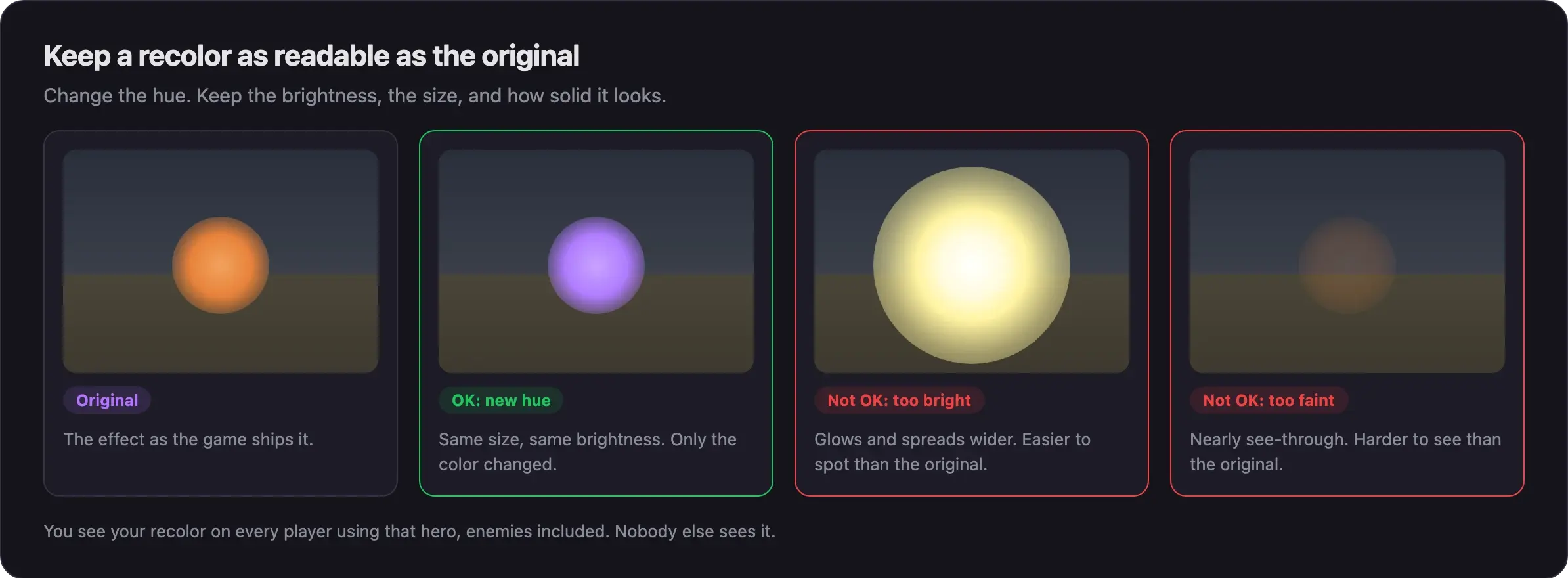
Keep the same brightness, size, and shape as the original. Never make an effect glow, brighter, bigger, fainter, or see-through. Never recolor team colored effects so enemies stand out. Read What's allowed and how to stay safe.
A simple test: change the hue in the color picker. Keep the brightness and saturation close to the original values.
How particle files work
An effect is a particle system: a .vpcf text file, compiled to .vpcf_c. Ability effects live in particles/abilities/<codename>/. That is about 10,500 files.
A particle system is a list of functions. Some create particles, some change them over time, and some draw them. It can also start child effects. Color can sit in several of these places at once:
- Functions with "color" in their name, such as Color Random.
- The system's Base Properties.
- The Renderer functions.
- Child effects, which have their own colors.
Miss one, and part of the effect keeps its old color.
Watch the walkthrough
This video by Pugzilla recolors Lady Geist's Life Drain to purple.
The video is from October 2025. The CSDK 12 launcher looks different now. The color tool it shows is the old one. Its description now points to vpcf-editor, and has the header fix shown below.
Recolor the effect
Find the particles an ability uses
A hero's folder holds many effects the game never uses. Find the exact files first.
- Start a private match with your hero. Test your mod in game shows how to turn on the console and start one.
- Press F7 to open the console.
- Use the ability. While its effect still plays, run
dumpparticlelistin the console. - Find the ability's entries in the list. Lady Geist's Life Drain used six: drain, beam, debuff, debuff ring, start player, and start target.
- Copy the names into a text file.
- Close the game.
Decompile them into your addon
- In the CSDK 12 launcher, create a new addon. Name it in lowercase with no spaces, such as
purpledrain. - Right-click it and choose Explore Content Folder.
- Create the folders
particles/abilities/<codename>/inside it. - In Source 2 Viewer, open
game/citadel/pak01_dir.vpkand go toparticles/abilities/<codename>/. - Right-click each particle from your list and choose Decompile & export.
- Save each one into the folder from step 3.
Folder names here can differ from the hero's other files. Lady Geist's model folder is geist, but her effects were in ghost in late 2025. Check the folder in Source 2 Viewer. Hero names and file paths has a note on ability effects.
Fix the header on newer particles
Some newer particles do not open in the tools. Their first line names a format the tools do not know. Open each .vpcf in a text editor and check the first line.
If it looks like this:
<!-- kv3 encoding:text:version{e21c7f3c-8a33-41c5-9977-a76d3a32aa0d} format:vrfunknown:version{c95f3434-dfef-4a35-9913-024beddb416a} -->Replace that whole line with this one:
<!-- kv3 encoding:text:version{e21c7f3c-8a33-41c5-9977-a76d3a32aa0d} format:vpcf61:version{39d3ce1d-9442-4407-9b78-8317145b1732} -->Notepad++ can do this for every file at once with Search, then Find in Files and Replace in Files.
This fix comes from late 2025. The format line may differ on the current build. If your files still do not open, ask in the community channels listed in Find mods, guides, and help.
Change the colors
Use the Particle Editor to recolor file by file. Use vpcf-editor to change many files at once.
- In the CSDK 12 launcher, select your addon and click Launch Tools.
- In the Asset Browser, search for a particle from your list. Click it once to preview it.
- Double-click it to open the Particle Editor.
- Check every function with "color" in its name, the Base Properties, and the Renderer.
- Change each color. Change the hue and keep the brightness.
- Check the Children list. If a child effect is in your list, open it and recolor it too.
- Press Ctrl+S to save. Watch the preview in the Asset Browser.
- Repeat for each particle until the whole effect has your colors.
If the preview does not change, the color comes from another function. Keep looking.
vpcf-editor is an unofficial community tool. It opens a folder of .vpcf files and lists every color in them. Its shared colors view finds one color across many files and changes them all together. It saves backups before it writes.
- Open vpcf-editor and pick the folder you decompiled into.
- Change the colors you want. Keep the brightness close to the original.
- Save.
- Preview the result in the Asset Browser.
Its README says MIT license, but the repository has no license file.
Compile and pack
- In the Asset Browser, select every particle you changed.
- Right-click and choose Recompile, then Full.
- Right-click your addon in the launcher and choose Explore Game Folder.
- Copy the
particlesfolder from there into a new staging folder. This keeps the right path. - Pack the staging folder with Pack your mod into a VPK.
- Load it in a private match and use the ability. Work through the Particles tab of the testing guide from the first stage.
Compare your effect with the original. It should be as easy to see, no more and no less.
When a color will not change
Common problems
Next steps
Build your own effect in the Particle Editor and play it in place of a game effect.
Credits
This guide is based on the work of these creators. Check out their original guides.
- Video: (New Tool) Deadlock - Particle Color Change Tutorial by Pugzilla.
- Guide: Simple Particle Recolor Tutorial by TheLastFriendly.
- Tool: vpcf-editor by yousv.
- Docs: Particle Editor (Source 2) from the Valve Developer Community.
- Data: GameTracking-Deadlock by SteamTracking, for the particle folders.
- Tool: Source 2 Viewer by the ValveResourceFormat team.