
Restyle a HUD element
Move or restyle one part of the HUD by editing its Panorama CSS, then compile and pack it, without adding information the game hides.
Move or restyle one part of the HUD, such as the kill feed. You decompile the game's stylesheet, change one rule, compile it with CSDK 12, and pack it. Make an image mod first, so you know the compile and pack steps.
The City Never Sleeps update (September 29, 2026) broke most HUD mods. Expect layout and style mods to break again after every big update. Plan to redo yours each time.
What you need

Source 2 Viewer finds the HUD stylesheet and decompiles it to CSS. CSDK 12 compiles your edited CSS back into a file the game reads. Your first mod teaches you how to pack and test.
What you can change
HUD mods only change your screen. That also makes it easy to cross the line, so check your idea first.
| Fine | Never |
|---|---|
| Move a panel, such as the kill feed | Timers of any kind |
| Change a panel's colors, borders, or spacing | Health numbers, cooldowns, or soul trackers |
| Use a font the HUD already uses | Ranks, stats, or missing-enemy alerts |
| Turn off menu animations | Bigger, brighter, or glowing objective icons |
| Removed scope overlays or screen effects | |
| Anything that pulls match data from outside the game |
Panorama can read game state. That is how timer and tracker mods work, and this wiki never covers them. If your change shows anything the normal HUD does not, it crosses the line. Read What's allowed and how to stay safe.
How HUD files work
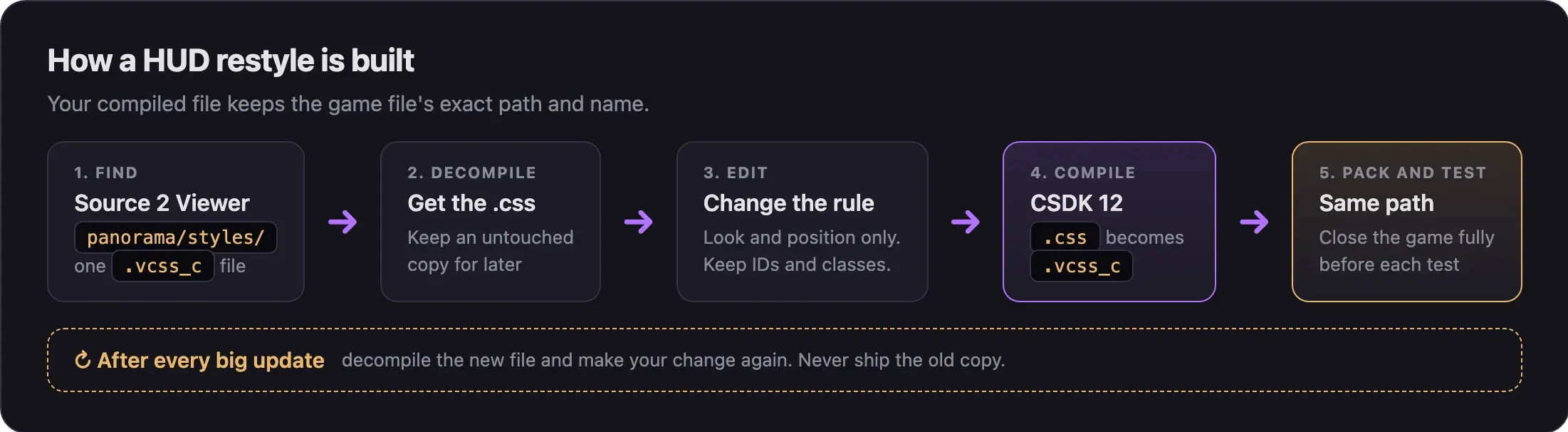
Deadlock's HUD and menus use Valve's Panorama UI system. Layout lives in XML files and style lives in CSS files. The game only reads the compiled versions:
| You edit | The game reads | Folder |
|---|---|---|
.css | .vcss_c | panorama/styles/ |
.xml | .vxml_c | panorama/layout/ |
Most restyles need one CSS file. Edit the XML only when a panel must move to another place in the layout.
Panorama CSS is close to web CSS, but not the same. Valve's Panorama page links the full property list, written for Dota 2 and CS:GO.
Make the mod
Find the file
- Open Source 2 Viewer.
- Open
Deadlock/game/citadel/pak01_dir.vpk. - Go to
panorama/styles/. File names say what they style. The kill feed ishud_data_feed.vcss_c. The escape menu ishud_escape_menu.vcss_c. - Pick the one file that styles the part you want to change.
- Write down its full path.
Decompile it
- Right-click the file and choose Decompile & export.
- Save the
.cssoutside your addon. This is your untouched copy. You need it after the next update. - Make a second copy. You edit this one.
Source 2 Viewer also has a command-line version. After each update, one command pulls a fresh copy of the file:
Source2Viewer-CLI -i "<Deadlock>/game/citadel/pak01_dir.vpk" -d -o <output folder> -f panorama/styles/hud_data_feed.vcss_cEdit only what you need
- Open your editing copy in a text editor.
- Find the rule for the panel you want to change.
- Change the values inside that rule.
- Keep every panel ID and class name as it is. The game finds panels by these names.
- Save the file.
Change the rule itself. Do not add a second rule for the same panel at the end of the file. One creator reports that compiled Panorama keeps the first value it reads, so a rule at the bottom may do nothing.
Fonts: use a font family the HUD already uses. For example, one mod switches the ammo counter to numericOracle, a font the HUD uses elsewhere. Nobody has documented how to add new font files.
Set up the addon
- Click Create New Addon in the CSDK 12 launcher. Use a lowercase name with no spaces, for example
killfeedmove. - Right-click the addon and choose Explore Content Folder.
- Rebuild the original path inside it:
panorama/styles/. - Put your edited file there with its original name.
Compile
- Select your addon and click Launch Tools.
- Find
hud_data_feedin the Asset Browser. - Right-click it and choose Recompile, then Full.
- Close the tools.
- Right-click your addon and choose Explore Game Folder. Open
panorama/styles/. Yourhud_data_feed.vcss_cis there.
Pack and test
- Make a staging folder with the same path:
panorama/styles/. - Copy only your compiled
hud_data_feed.vcss_cinto it. Ship only files you changed. - Pack the folder. Follow Pack your mod into a VPK.
- Close Deadlock fully. Leaving a match and joining again does not load a new HUD build.
- Start the game and check the panel. Follow Test your mod in game.
Redo it after every update
Big updates change HUD files. Your old file then replaces Valve's new one. At best your change disappears. At worst the game will not start.
- Remove your HUD mod before you play after a big update.
- Decompile the new version of the file.
- Compare it with your untouched copy. Look for renamed panels and classes.
- Make your change again on the new file.
- Compile, pack, and test again.
Write down every line you change. If you use Git, save your change as a .patch file and apply it to each new version. The Linux tool deadlock-modbox builds its HUD mods this way. The update guide under Next steps covers the rest of the update routine.
Clashes with other HUD mods
- Two mods that ship the same file cannot both work. The lower pak number wins, and the other mod may break.
- Whole-HUD packs replace dozens of files. They usually ask you to remove every other HUD mod.
- A mod that changes one file clashes least. Keep yours to one file when you can.
Common problems
The community has not worked out everything yet. Nobody has published which HUD files City Never Sleeps changed, how to add new fonts, or exactly how compiled Panorama handles CSS overrides.
Next steps
Find what an update changed, rebuild your mod on the new files, and post the fix.
Credits
This guide is based on the work of these creators. Check out their original guides.
- Guide: Panorama on the Valve Developer Community.
- Code: deadlock-modbox by rszyma, for the decompile command and the
.patchfile workflow. - Mod: Kill Feed Position by test_json, a one-file restyle.
- News: City Never Sleeps Update by TheLastFriendly on GameBanana.
- Tool: Source 2 Viewer by the ValveResourceFormat team.