
Hero material settings reference
Every setting in Deadlock's hero shader in plain English: what each feature does, which texture goes in which slot, and what to avoid.
This page lists the settings of pbr.vfx, the shader every Deadlock hero material uses. Keep it open next to the recolor and custom material guides, linked under Next steps. The data comes from Valve's own shader as of build 6779.
What you need

CSDK 12's Material Editor shows these settings as fields and checkboxes. Source 2 Viewer decompiles a hero material so you can compare. You only need the text editor if you edit .vmat files by hand.
Keep it fair
A recolor changes that hero for you everywhere, enemies included. So some settings can make an enemy easier to see. The tables on this page mark every setting:
| Mark | Meaning |
|---|---|
| Keep | Leave it as the original has it. The game needs it. |
| OK | Changes the look only. |
| Careful | Fine if the hero stays about as bright and as easy to see as the original. |
| Avoid | Changes how easy a hero is to see. Do not use it on hero skins. |
Never make a hero glow, ignore lighting, turn see-through, or lose its outline. Never make a hero very dark either. What's allowed and how to stay safe lists the rules.
Anatomy of a .vmat
A material is a short text file. It holds four kinds of lines.
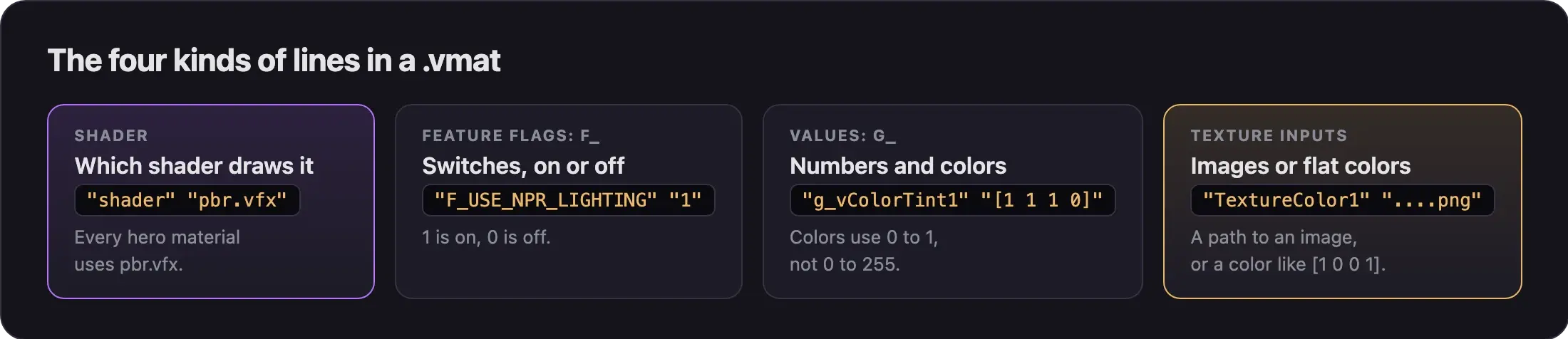
Here is a small example for a custom hero body:
"Layer0"
{
	"shader" "pbr.vfx"
	"F_USE_NPR_LIGHTING" "1"
	"F_USE_STATUS_EFFECTS_PROXY" "1"
	"g_vColorTint1" "[1 1 1 0]"
	"TextureColor1" "materials/models/mymod/body_color.png"
	"TextureNormal1" "materials/models/mymod/body_normal.png"
	"TextureRoughness1" "materials/models/mymod/body_rough.png"
	"TextureMetalness1" "[0 0 0 1]"
}| Line | Looks like | What it does |
|---|---|---|
| Shader | "shader" "pbr.vfx" | Always pbr.vfx for heroes. |
| Feature flags | Start with F_ | "1" turns a feature on, "0" turns it off. |
| Values | Start with g_ | Numbers and colors. Colors are lists of numbers from 0 to 1, such as [1 1 1 0]. |
| Texture inputs | End in 1, such as TextureColor1 | A path to a source image, or a flat color in brackets. |
When you compile, the material becomes a .vmat_c file. Each texture input then points to a compiled texture with a code in its name, such as body_color_png_63291cfb.vtex_c.
The game's config sets the Material Editor's default shader to
environment_texture_set. A brand new material may start on that shader.
Always check that the shader reads pbr.vfx.
Feature flags
The Material Editor shows some flags as checkboxes. The labels we know are in bold.
Lighting and outline
| Flag | What it does | Mark |
|---|---|---|
F_USE_NPR_LIGHTING | Use NPR Lighting. Deadlock's stylized lighting, with rim light and banded shading. Every hero material needs it. | Keep |
F_USE_STATUS_EFFECTS_PROXY | Use Status Effects Proxy. Lets status effects, like Veil Walker or an ultimate, draw over the mesh. Without it, those effects are missing on your skin. | Keep |
F_SOLID_COLOR_OUTLINE | Solid Color Outline. A flat colored outline. g_vSolidOutlineTint sets the color. | Careful |
F_OVERRIDE_NPR_OUTLINE | A custom outline thickness, set by g_flOverrideNprOutlineThickness. | Avoid |
F_DISABLE_NPR_OUTLINE | Removes the outline. | Avoid |
F_NO_SPECULAR_AT_FULL_ROUGHNESS | Turns off shine where roughness is at its maximum. | OK |
F_UNLIT | The surface ignores light and shadow. | Avoid |
F_SELF_ILLUM | Self Illumination. Makes the surface glow, with a mask, a tint, and a strength. | Avoid |
Transparency
| Flag | What it does | Mark |
|---|---|---|
F_ALPHA_TEST | Alpha Test. Cutout transparency, for hair cards and lace. Each pixel is shown or hidden. | Careful |
F_TRANSLUCENT | Translucent. A see-through surface. | Avoid |
F_ADDITIVE_BLEND | Adds the surface's color on top of what is behind it. | Avoid |
F_ADVANCED_TRANSLUCENCY | Extra see-through options. | Avoid |
F_WRITE_DEPTH_BEFORE_ALPHA_BLENDING | Write Depth Before Alpha Blending. Fixes bald or see-through spots when the hero fades out. | OK |
F_CLOAK | The invisibility and refraction effect. | Keep |
Never remove F_CLOAK or translucency from a stealth or invisibility look. Keep alpha test cutouts small, like hair strands. Large cutouts make a hero near-transparent.
Guides tell you to tick Write Depth Before Alpha Blending on every new hero material. But Valve's shader allows it only when Translucent is on. On a normal, solid material it may do nothing.
Surface and UV
| Flag | What it does | Mark |
|---|---|---|
F_RENDER_BACKFACES | Draws both sides of each face. | OK |
F_USE_FRONT_FACE_NORMALS_FOR_BACK_FACES | Lights the back side of a face like its front side. | OK |
F_SHEEN | A soft cloth sheen. | OK |
F_GLASS | A glass surface. | Careful |
F_DETAIL | Adds a detail texture on top. | OK |
F_SECONDARY_UV | Uses a second UV set. | OK |
F_ENABLE_TEXTURE_TRANSFORMS | Scrolls or rotates the textures. | OK |
F_VERTEX_COLOR, F_PAINT_VERTEX_COLORS | Uses the mesh's vertex colors. | OK |
F_JITTER_VERTICES | Shakes the vertices as an animation. | OK |
F_MATERIAL_VARIANT | "Material Referencing": builds on another material. | OK |
Rendering tweaks
| Flag | What it does | Mark |
|---|---|---|
F_OVERRIDE_BLOOM_AMOUNT | Changes how much bright parts bloom, or glow. | Avoid |
F_DISABLE_DEPTH_WRITE, F_DISABLE_Z_PREPASS | Low-level drawing changes. | Keep |
F_DO_NOT_CAST_SHADOWS | The surface casts no shadow. | Keep |
Flags that need or block each other
| Flag | Needs |
|---|---|
| Use Status Effects Proxy | NPR lighting, Unlit, or Self Illumination |
Solid Color Outline, both outline overrides, and F_NO_SPECULAR_AT_FULL_ROUGHNESS | NPR lighting |
F_ADDITIVE_BLEND and Write Depth Before Alpha Blending | Translucent |
Some flags block each other. For example, Sheen, Glass, Cloak, and Translucent cannot be combined. Cloak and Status Effects Proxy cannot be combined either.
Texture inputs and how they are packed
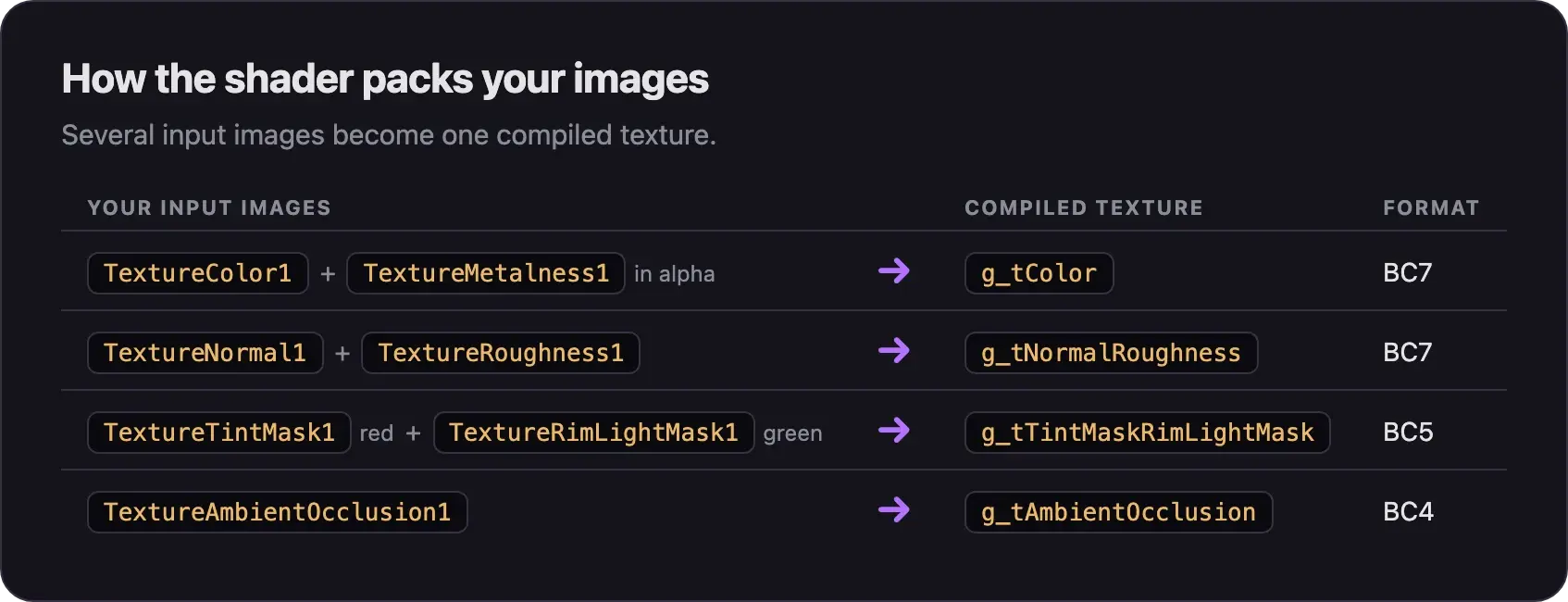
The shader packs several input images into one compiled texture. You never pick the compiled format. The compiler does that.
| Input | File suffix | Packed into | Format |
|---|---|---|---|
TextureColor1 with TextureMetalness1 in alpha | _color, _metal | g_tColor | BC7 |
TextureColor1 with TextureTranslucency1 in alpha | _color, _trans | g_tColor (translucent or alpha test only) | BC7 |
TextureNormal1 with TextureRoughness1 | _normal, _rough | g_tNormalRoughness | BC7 |
TextureAmbientOcclusion1 | _ao | g_tAmbientOcclusion | BC4 |
TextureTintMask1 (red) with TextureRimLightMask1 (green) | _mask | g_tTintMaskRimLightMask | BC5 |
TextureNprOutlineMask1 | _mask | g_tNprOutlineMask | BC4 |
TextureNprTramsissiveColor1 | _color | g_tNprTransmissiveColor | BC7 |
TextureSelfIllumMask1 | _mask | g_tSelfIllumMask | BC4 |
TextureSheenColor1 with TextureSheenRoughness1 | _sheen, _rough | g_tSheen | BC7 |
TextureDetail, TextureDetailMask | _detail, _detailmask | g_tDetail, g_tMasks1 | BC7, BC4 |
TextureAltColor1 with TextureAltTextureReveal | _color, _blend | g_tAltColor_Reveal | BC7 |
- Type
TextureNprTramsissiveColor1with Valve's spelling. The typo is in the shader itself. This input sets the color of the hero's shadow side. If shadows look wrong, set it to a flat color. - Use the file suffixes. The Material Editor's file picker filters by them. A color image not named
*_colormay not show up. Rename it, or switch the picker's filter to all images. - Source images can be PNG, TGA, PSD, or JPG. TIF, PFM, and SVG also work.
- Keep the original size. Hero body textures seem to be 2048 x 2048, and Abrams' weapon textures 512 x 512. Check yours in Source 2 Viewer. Use sizes that are a power of two, such as 512, 1024, or 2048.
- Flat colors become tiny textures. A flat color in a texture input compiles to a small texture with
_vmat_g_in its name. - Ship the new compiled files together. A new
.vmat_cpoints to new.vtex_cfiles with new codes in their names. Pack them all. The recolor guide shows how.
Color values for recolors
These values change color without new images.
| Value | Default | What it does | Mark |
|---|---|---|---|
g_vColorTint1 | [1 1 1 0] | Multiplies the color texture. Details stay visible. | OK |
g_bMaskColorTint1 | On | Applies the tint only where TextureTintMask1 is white. | OK |
g_nTextureColorTintMode1 | Not listed | How the tint mixes: 0 is Multiply, 1 is Preserve Luminance, 2 is Mod2X. | Careful |
g_vAlbedoContrastSaturationBrightness1 | 1 1 1 | Contrast, saturation, and brightness of the color texture. Keep brightness near 1. | Careful |
g_vSolidOutlineTint | Not listed | Color of the solid outline. | Careful |
g_flOverrideNprOutlineThickness | 0.2 | Outline thickness, from 0 to 2. | Avoid |
g_vSelfIllumTint1, g_flSelfIllumScale1 | Not listed | Glow color and glow strength. | Avoid |
Many hero materials ship a tint mask. With g_bMaskColorTint1 on, a tint then changes only some parts of the hero.
Texture inputs can hold a flat color instead of an image. Write red, green, blue, and alpha from 0 to 1. To convert a color from 0 to 255, divide each number by 255. The gold from the briefcase guide, 255 192 47, becomes:
"TextureColor1" "[1 0.753 0.184 1]"For shine and metal:
| Input | Low | High |
|---|---|---|
| Roughness | Black: smooth and shiny | White: matte |
| Metalness | 0: does not look like metal | 1: looks like metal |
Settings you cannot change per material
The NPR rim light and shading steps, such as g_flNPRRimLightStrength and g_flNPRDiffuseStepSharpness, are scene settings. The game sets them for the whole scene. A material cannot change them, so adding them to your .vmat does nothing.
Settings to avoid
Leave these alone on any hero material. Each one changes how easy that hero is to see:
| Kind | What to leave alone |
|---|---|
| Glow | Self Illumination, F_UNLIT, or a bloom override |
| Brightness | A high brightness value, or a tint mode that makes the hero brighter than the original |
| Transparency | Translucent, additive blending, or large alpha test cutouts |
| Stealth looks | Removing F_CLOAK or translucency from invisibility effects |
| Outlines | Removing the outline, making it thicker, or giving it a loud color |
| Darkness | Very dark colors that hide a hero in shadows |
Common problems
More fixes are in Errors when making mods and Model and skin problems.
Next steps
Change color, roughness, and metalness in the Material Editor.
Paint the hero's images and rebuild the material.
Build new materials for your own model.
Credits
This guide is based on the work of these creators. Check out their original work.
- Data: pbr shader in GameTracking-Deadlock by SteamTracking, reconstructed with Source 2 Viewer. Every flag, input, and format on this page comes from it.
- Example files: naidan-deadlock-mod by Pa1eCr0w, a real hero mod with its
.vmatand.vtexsources. - Guide: From Start to Finish (Fuji's Asset Replacement Guide) by Fuji (FellOffFuji).
- Video: (Read Desc) Deadlock - General Model Swap Steps by Pugzilla.
- Guide: How I Make Shiny Metal Materials by ShockHub.