
Update your mod after a game update
Find what a Deadlock update changed, rebuild your mod on the new game files, test it, and post the new version from Divine's Creator Panel.
Updates break mods. The City Never Sleeps update (2026-09-29) broke most HUD mods at once, plus some model mods and many animation mods. This page shows how to find what changed, rebuild your mod, and post the fix. How Deadlock mods work explains why updates break things.
Players know this happens, so take the time you need.
What you need

Lost your addon and source files? Open your old VPK in Source 2 Viewer and decompile the files back into an addon.

What updates break
Your mod ships a full copy of every file it replaces. If Valve changes that file, your old copy hides the new version. If Valve moves it, your copy sits at a path the game no longer reads.
| What Valve changed | What players see | What you do |
|---|---|---|
| A model moved folders | The normal hero shows up, with no error | Move your files to the new path |
| Animation system | The hero A-poses or has no animations | Rebuild on a fresh copy of the current model |
| Skeleton | Broken animations, also in other mods for that hero | Remove any .vnmskel_c from your mod |
| Camera attachments | The camera sits in the middle of the screen | Copy every attachment from the current model |
| HUD layout | A broken HUD, or the game crashes at launch | Redo your change on the new HUD file |
| Hero data | New heroes stay locked, or stats stay at old values | Remove every scripts/*.vdata_c file from your mod |
gameinfo.gi (player side) | No mods load at all | Redo the install edit, or let a mod manager do it |
Cosmetic mods should never ship scripts/*.vdata_c files or a skeleton in the first place.
Fix it, step by step
Check what changed
- Read Valve's update notes in the official Changelog forum. Look for the heroes and items your mod touches. The notes never mention mods.
- Ask on Divine's Discord what broke for other creators. Big updates break the same mod types for everyone.
- Open the new
game/citadel/pak01_dir.vpkin Source 2 Viewer. - Find every file your mod replaces. Check that each path and file name still matches. Hero names and file paths shows how.
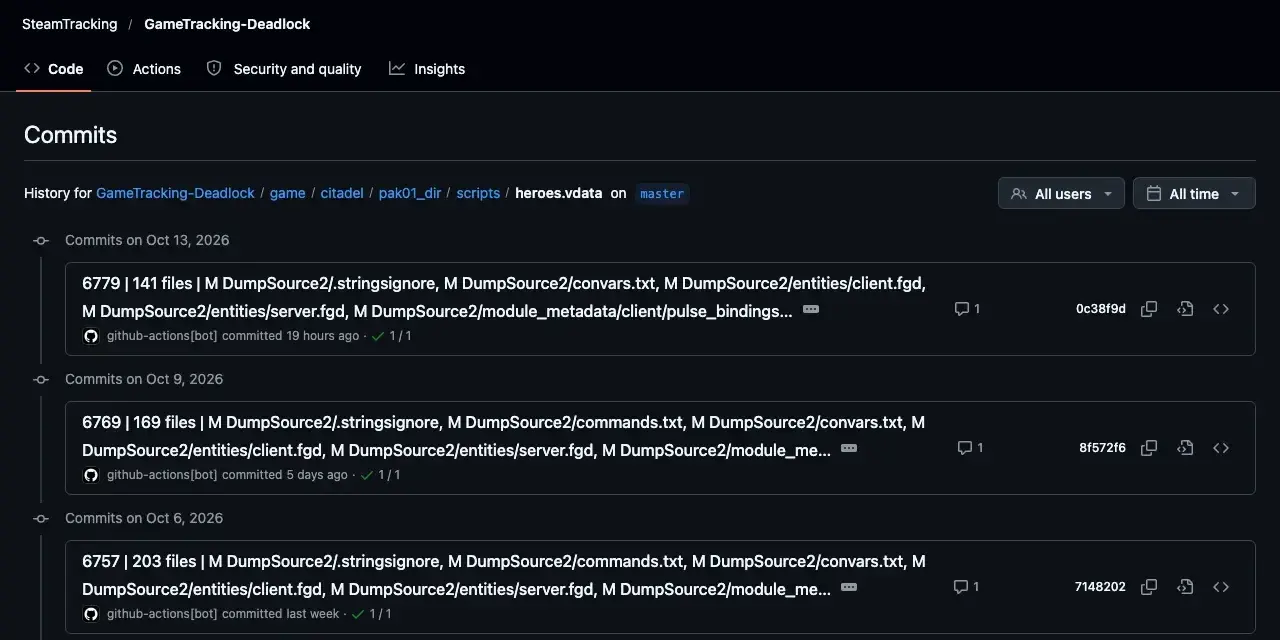
For a deeper check, use GameTracking-Deadlock on GitHub. It saves Valve's files for every build.
GameTracking-DeadlockValve's files for every Deadlock build, saved by SteamTracking.
- Open the history of
heroes.vdata. Each commit is one game build. - Click the commit for the new build.
- Look for changed lines near your hero's model path.
Rebuild your mod
Pick your mod type.
Start from a fresh copy of the current hero model, not your old model file. The current model already has Valve's new skeleton, attachments, and animation data. One creator showed this fix in August 2026, before City Never Sleeps, so details may differ now.
- Update Source 2 Viewer. Versions before 20.0 exported attachments wrong.
- Open the new
pak01_dir.vpkand find the hero's current model. Check its folder, since it may have moved. - Decompile the model into your addon at its current path.
- Swap your mesh into this fresh model. The hero model swap guide covers the mesh and material steps.
- Check that every material points to the hero's current folder.
- Recompile, then pack only the files you changed.
This covers sounds, images, materials, and particles.
- Find the original file again in Source 2 Viewer.
- If its path or name changed, rebuild that path in your addon and staging folder.
- If Valve changed the file itself, decompile the new version. Redo your edit on it.
- Recompile and repack.
For materials, this means redoing your values from Recolor with material values on the new material.
- Decompile the new
.vcss_cor.vxml_cfile with Source 2 Viewer. - Redo only your change on the new file. Never paste your old full file over it.
- Compile, pack, and test. Close Deadlock fully before each test. Reconnecting is not enough.
Save your change as a .patch file next time: a list of the lines you changed. Then you can reapply it to each new version instead of redoing it by hand. Restyle a HUD element has the full steps.
- Decompile the original clip again from the new game files.
- Check its frame count and FPS. If they changed, change your animation to match.
- Point the new
.vnmclipat your DMX, recompile, and repack.
Nobody has published which City Never Sleeps change broke animation mods. Replace an animation has the full steps.
Test the fix
- Turn off your other mods.
- Load your mod in a private match. Follow Test your mod in game.
- Check the console for errors that name your files.
Post the new version
Divine is adding Deadlock mods. Once they arrive, you post updates from the Creator Panel.
- Open your mod in the Creator Panel and edit it. Post the fix there, not as a new mod.
- Upload the new archive.
- Say in the description what changed and which game update it works with.
- Submit the change.
Every mod on Divine is free, and so is every fix. Never lock a fix behind early access. Fixing someone else's mod? Ask them first. Credits, licenses, and permissions explains both rules.
Next steps
The Creator Panel, step by step.
When an outdated mod crashes the game.
Credits
This guide is based on the work of these creators. Check out their original pages.
- Data: GameTracking-Deadlock by SteamTracking (SteamDB).
- News: City Never Sleeps Update by TheLastFriendly and VoidNVain on GameBanana.
- Video: Let me walk you through updating a mod by Alacripose. The fresh-model approach comes from here.
- Code: deadlock-modbox by rszyma: HUD changes kept as patch files.
- Code: naidan-deadlock-mod by Pa1eCr0w: a real fix for a shipped hero data file.
- Policy: Paywalled Content Policy by GameBanana.