
Hero swap part 4: add AnimGraph 2 and compile
Add the hero's AnimGraph 2 references in CS2 Workshop Tools, compile the final model, then pack and test your finished skin.
Part 4 of 4. You start with viper_work.vmdl from part 3, with its attachments and game data in place. You finish with a packed pakNN_dir.vpk and your skin moving in game. The whole path is in Hero model swap: overview.
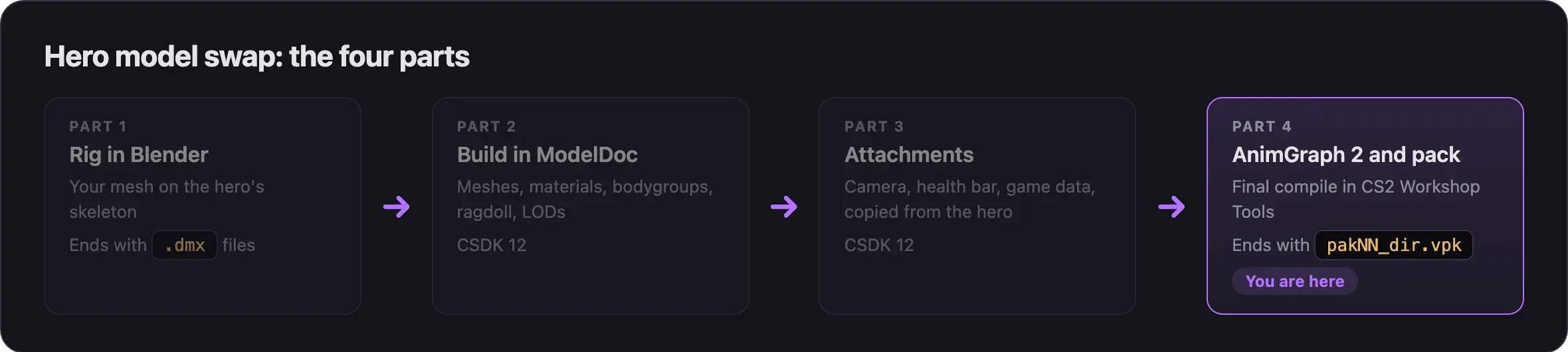
Why CSDK 12 cannot finish the job
Almost every hero uses AnimGraph 2. Its animations live in separate files, driven by a skeleton file (.vnmskel) and graph files (.vnmgraph). Your model must point to the hero's own skeleton and graphs. Without them, the hero stands in an A-pose and does not turn.
CSDK 12 cannot compile these links. Valve's CS2 Workshop Tools can. You use its ModelDoc for this one compile and take only the finished model back. Your materials stay in CSDK 12.
What you need

CS2 Workshop Tools comes free with Counter-Strike 2 on Steam. It compiles the AnimGraph 2 links. Source 2 Viewer shows the original hero's skeleton and graph paths. The hero names list gives your hero's skeleton and graph names.
Some videos use "CSwin64" instead, a repack of the CS2 tools on Google Drive. We do not link it: it is unofficial and its uploader is unknown. The official tools do the same job.
Watch the walkthrough
Basilisken adds the AnimGraph 2 nodes in the official CS2 Workshop Tools from 57:22. Pugzilla covers the same step from 47:07.
It was recorded in May 2026 with older tools, and auto captions garble some node names. The node names below are the ones to use.
Compile in CS2 and pack
Copy your model to CS2 Workshop Tools
- Close CSDK 12.
- Start CS2 Workshop Tools and create a new addon. Give it the same name as your CSDK 12 addon.
- Open the new addon's content folder,
content/csgo_addons/<addon>/, inside your Counter-Strike 2 folder. - Copy the
modelsfolder fromReduced_CSDK_12/content/citadel_addons/<addon>/into it. Keep the same folder structure.
The copy holds viper_work.vmdl, your DMX files, and your material sources. The DMX files must sit in this addon. ModelDoc cannot load meshes from another addon.
Add the skeleton and graph references
- In the CS2 Asset Browser, find
viper_work.vmdland open it in ModelDoc. - Ignore the error and the red checkerboard materials. CS2's shaders differ from Deadlock's.
- If ModelDoc reports a bad content path for animations, disable
AnimationList. - In Source 2 Viewer, open the original hero's
.vmdl_c. Go to the Data tab and scroll to the bottom. - Note the skeleton path and the two graph paths there.
- In ModelDoc, choose Add, then NmSkeletonReference. When a file picker opens, close it and choose Keep.
- Paste the skeleton path into the new node.
- Choose Add, then DefaultAnimGraph2 and paste the main graph path.
- Choose Add, then AnimGraph2. Name it
ui, in lowercase, and paste the UI graph path. - Click Compile.
For Vyper, the three values look like this:
NmSkeletonReference   models/heroes_staging/viper/viper.vnmskel
DefaultAnimGraph2     animgraphs/animgraph2/hero/hero.vnmgraph+viper.vnmgraph
AnimGraph2 (ui)       animgraphs/animgraph2/hero/hero_ui.vnmgraph+viper.vnmgraph
Other heroes follow the same pattern, but not always with the same name. Kelvin and Viscous share one skeleton, and Ivy's skeleton sits under her old name tengu. Always copy the paths from the Data tab.
Take only the compiled model
- In the CS2 Asset Browser, right-click your model and open the folder of its compiled file.
- Find
viper_work.vmdl_cingame/csgo_addons/<addon>/models/heroes_staging/viper/. - Copy that one file. Take nothing else from this folder.
Need to change something later? Make the change in CSDK 12, copy the changed nodes into the CS2 copy, and compile there again.
Build the staging folder
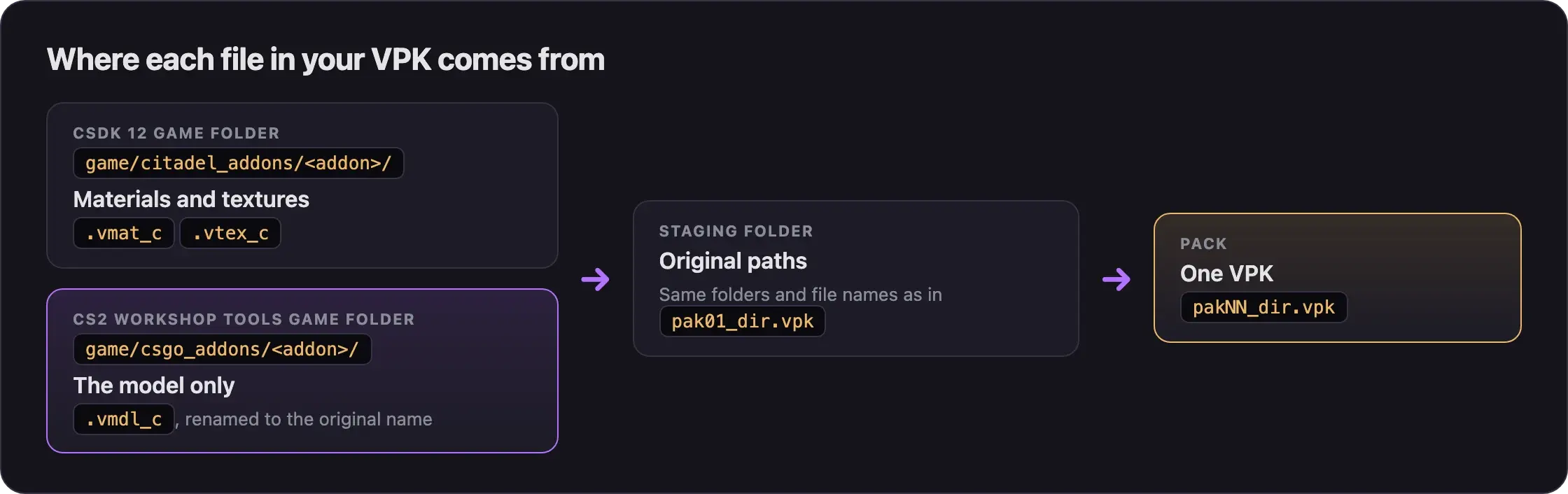
- Make a new folder for your mod, such as
myskin_pack. - Copy the
modelsfolder from CSDK 12'sgame/citadel_addons/<addon>/into it. It holds your compiled materials and textures. - Delete the CSDK 12 build of
viper_work.vmdl_cfrom the copy. - Paste the CS2 build of
viper_work.vmdl_cin its place. - Rename it to the original name,
viper.vmdl_c. - Remove every file the mod must not ship. The list is below.
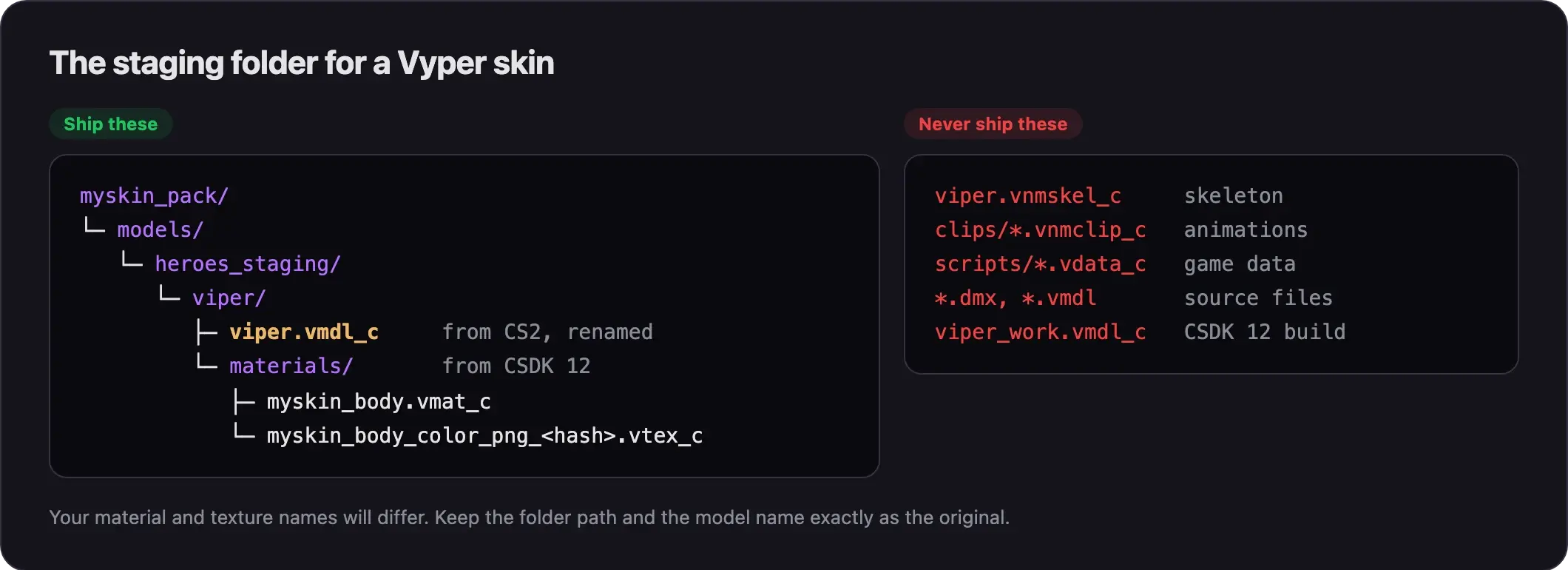
Never ship:
- the hero's
.vnmskel_cskeleton; .vnmclip_canimation clips;- anything in
scripts/, such as.vdata_cfiles; - compiled files you did not change.
These files break other mods for the same hero, and they break after game updates.
Pack and test
- Pack the staging folder into one VPK. Follow Pack your mod into a VPK.
- Name it like
pak05_dir.vpkand put it ingame/citadel/addons/. - Close CSDK 12 and CS2 Workshop Tools.
- Start Deadlock and load a private map. Test your mod in game shows how.
Then check every item:
- Walk and run. The hero animates and turns with the camera.
- Aim down sights. The camera sits behind the hero like on the normal hero, and the zoom matches.
- Use every ability. Parts that switch on or off still do.
- Die once. The ragdoll falls without stretching.
- Look at the health bar. It floats above the head.
- Listen for footsteps and ability sounds.
- Look at the hero select and shop screens.
- Walk far away from the hero. The LODs keep the same shape.
Something looks wrong? Model and skin problems lists each symptom and the part that fixes it. Before you queue for a real match, follow Before you queue again.
Heroes that may still use AnimGraph 1
Violet and Nurse Harrow had no main AnimGraph 2 graph in build 6779. If your hero's Data tab shows no hero.vnmgraph+ path, it may still use the older AnimGraph 1.
Fuji's guide handles AnimGraph 1 heroes with one node. Add an AnimIncludeModel node. Point it to your "export as is" copy of the original model, written with a .vmdl ending. Without it, the hero T-poses and does not turn. This comes from one guide and may differ on the current build.
A tool that does this step for you
DeadlockTools, a small community tool, can write the AnimGraph 2 references into a model you compiled in CSDK 12. Then you skip CS2 entirely. It is unofficial, its author calls the file writing experimental, and we have not tested it.
DeadlockToolsWrites the AnimGraph 2 references into a CSDK 12 model. Covered in Helper tools and scripts.
UntestedCommon problems
That's a full hero swap. Share it once every item on the test list passes.
Next steps
Divine is adding Deadlock mods. When they arrive, you'll publish yours from the Creator Panel.
Turn your hero and change the lighting on the menu screens.
Fix your skin when an update breaks it.
Credits
This guide is based on the work of these creators. Check out their original guides.
- Video: Bat Drifter from Start to Finish: Part 1 - Make it exist first, make it pretty later by Basilisken.
- Video: (Read Desc) Deadlock - General Model Swap Steps by Pugzilla.
- Guide: Neutral's General Guide for Modding Deadlock (Models, Textures, Sounds) by Neutraldrift.
- Guide: How to Model Replace for Dummies + Blender Steps by Axelliax.
- Guide: From Start to Finish (Fuji's Asset Replacement Guide) by Fuji.
- Docs: Counter-Strike 2 Workshop Tools on the Valve Developer Community.