
Crashes, launch errors, and matchmaking blocks
Fix Deadlock crashes after an update, KV3 and KeyValues errors, Panorama errors from old HUD mods, and the matchmaking gameinfo.gi block.
Deadlock crashes, shows a FATAL ERROR, or will not let you queue. Start with the first check: it tells you whether a mod or the game is at fault. Then find your error below. Each fix is titled with the exact error text, so you can search this page with Ctrl+F.
Mods do nothing, but the game runs fine? Go to Mods not loading.
What you need

Source 2 Viewer
optionalTo open your Deadlock folder, right-click Deadlock in Steam and choose Manage, then Browse local files. Source 2 Viewer opens mod files so you can see what is inside.
First: is it a mod or the game?
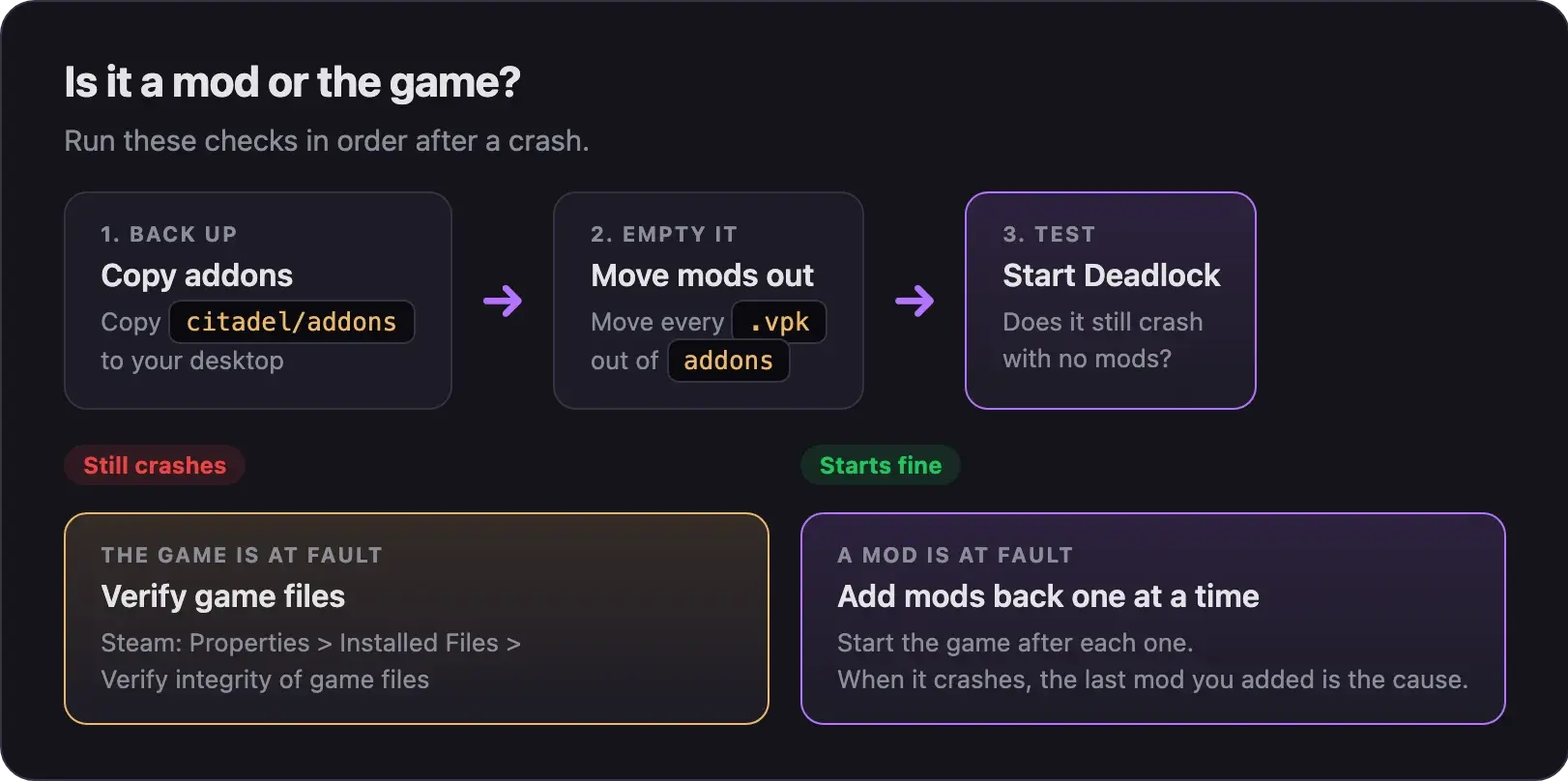
Empty the addons folder
- Close Deadlock and your mod manager.
- Copy
game/citadel/addonsto your desktop as a backup. - Open
addonsand move every.vpkfile out of it.
Touch only files inside addons. The .vpk files directly in citadel belong to the game.
Start the game
- Start Deadlock.
- Still crashes? The game is at fault, not a mod. In Steam, right-click Deadlock and choose Properties, then Installed Files, then Verify integrity of game files. Wait for it to finish.
- Starts fine? A mod is at fault. Go to the next step.
Put your mods back one at a time
- Put back one mod, then start the game.
- Repeat until the crash comes back. The last mod you added caused it.
- Leave that mod out and check the mod's page for an update.
With many mods, put back half at a time instead. Keep halving the group that crashes until one mod is left.
With Deadlock Mod Manager, click Disable all mods instead of moving files. Then switch mods back on one at a time.
Before you put mods back, redo the addons line, or click Launch Modded in your manager.
Reinstalling Deadlock does not help. Steam leaves the addons folder on disk, so old mods keep crashing the game. Empty addons by hand.
Watch the fix
This short video by KitsuneGuide shows the same check, made right after the City Never Sleeps update.
Errors at launch
Matchmaking, replays, and menus
It crashes with no mods at all
If the game crashes even with an empty addons folder, a game file may be damaged.
- Run Verify integrity of game files in Steam.
- Check that
addonsis really empty, including subfolders. - Check for extra mod folders a manager made in
game/citadel/, such asaddons2. Empty those too.
If it still crashes, mods are not the cause. Find mods, guides, and help lists places to ask.
Next steps
You made the mod that broke. Rebuild it on the new game files.
The matchmaking rules, and how to keep your account in good standing.
Credits
This guide is based on the work of these creators. Check out their original guides.
- Video: Deadlock Fatal Error Fix by KitsuneGuide.
- Q&A: GoldenIdol Error? (solved) on GameBanana, answered by TheLastFriendly.
- Thread: Are mods & the Mod Manager completely broken for anybody else? by b1ueFPS on Reddit.
- Guide: Installing Mods from Deadlock Modding Notes.
- Code: Grimoire source code by Slush97, which explains the keybinding crash.
- Guides: Replay errors fix guide and Menu text fix guide by meno on Steam.
- Data: GameTracking-Deadlock by SteamTracking, for Valve's exact matchmaking message.